For MyVA Support staff: connect Sendl to Claude or ChatGPT so you can ask an AI assistant to look up and compare candidates for you.
Step 1, Open Settings
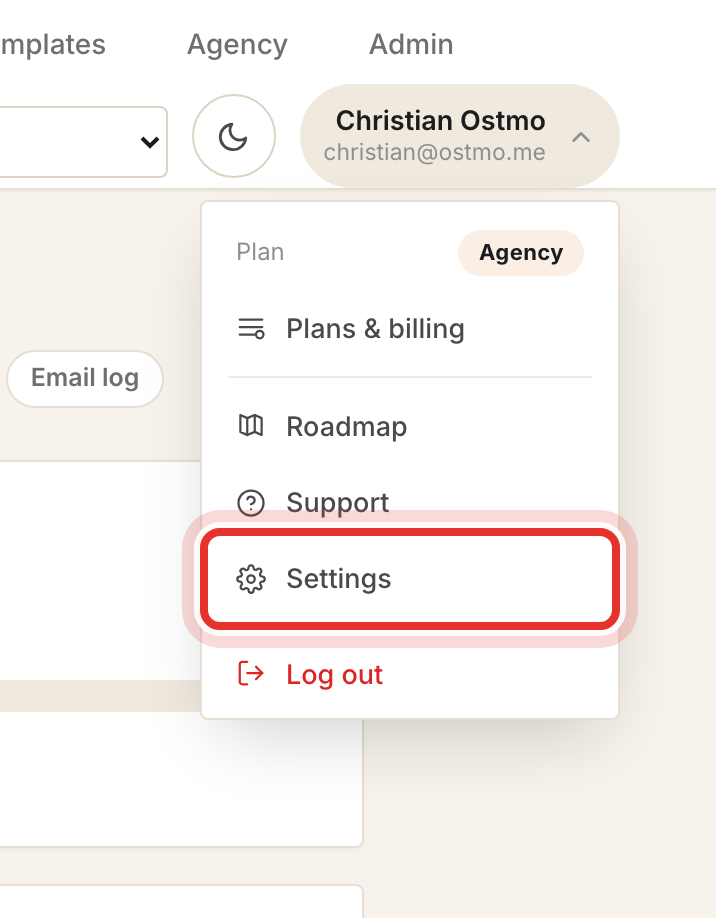
Click your name at the top right of Sendl, then click Settings. Do not click Log out.
Step 2, Jump to the MCP connector
At the top of Settings, click the MCP connector chip.

Step 3, Copy your MCP URL
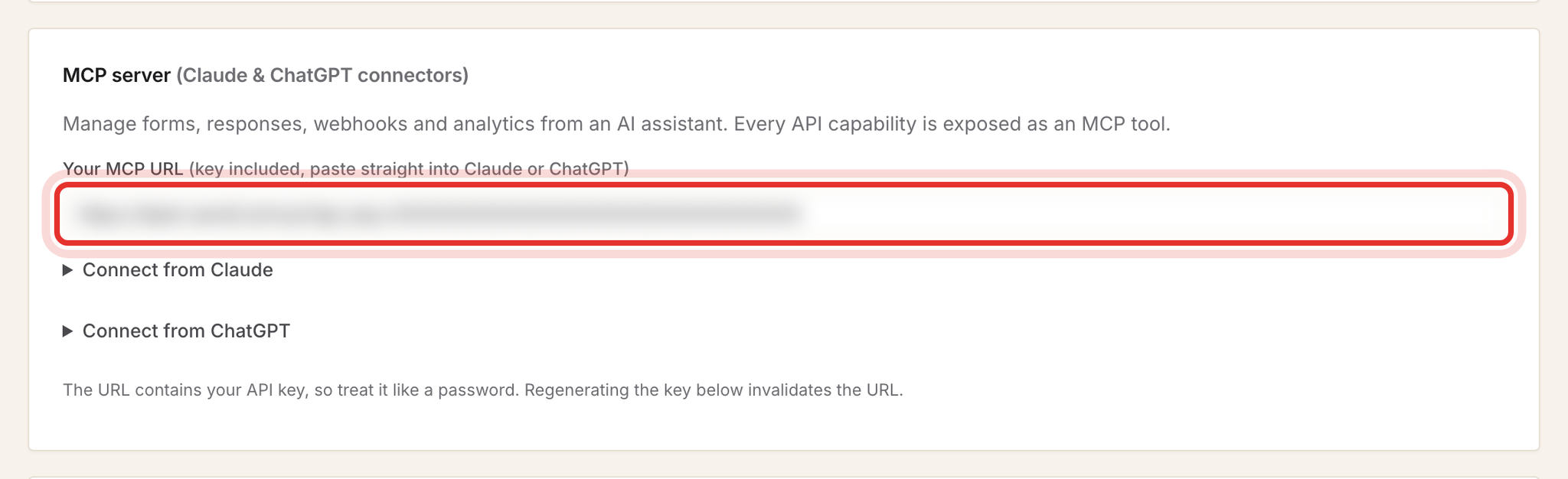
Click the Your MCP URL box. It selects the whole address; copy it. It looks like https://dash.sendl.io/mcp?api_key=YOUR-PERSONAL-KEY.
This URL contains your personal key and works like a password. Every action the AI takes is done as you, with your role. Never paste it into a chat, e-mail or document, and never share it with a teammate. Each person copies their own.
Step 4, Add it in Claude
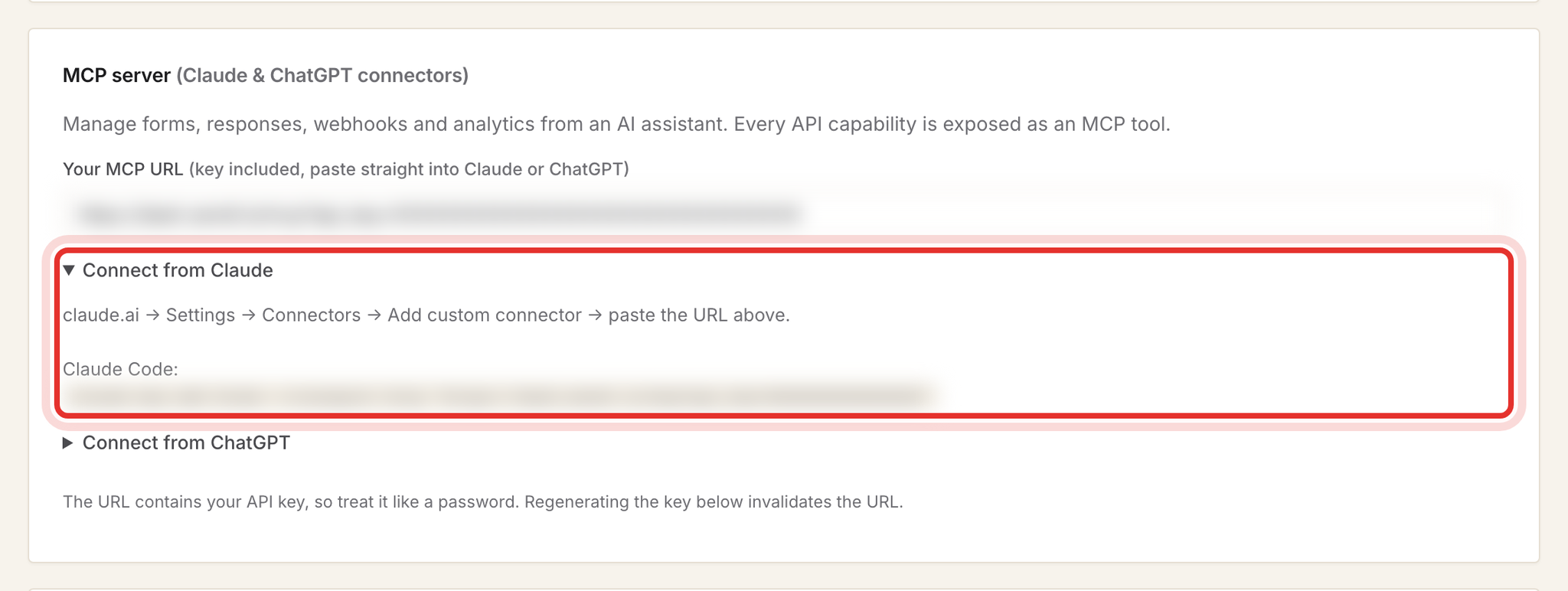
- In claude.ai, open Settings, then Connectors.
- Click Add custom connector.
- Give it a name such as Sendl, paste your URL, and add it.
Step 5, Or add it in ChatGPT
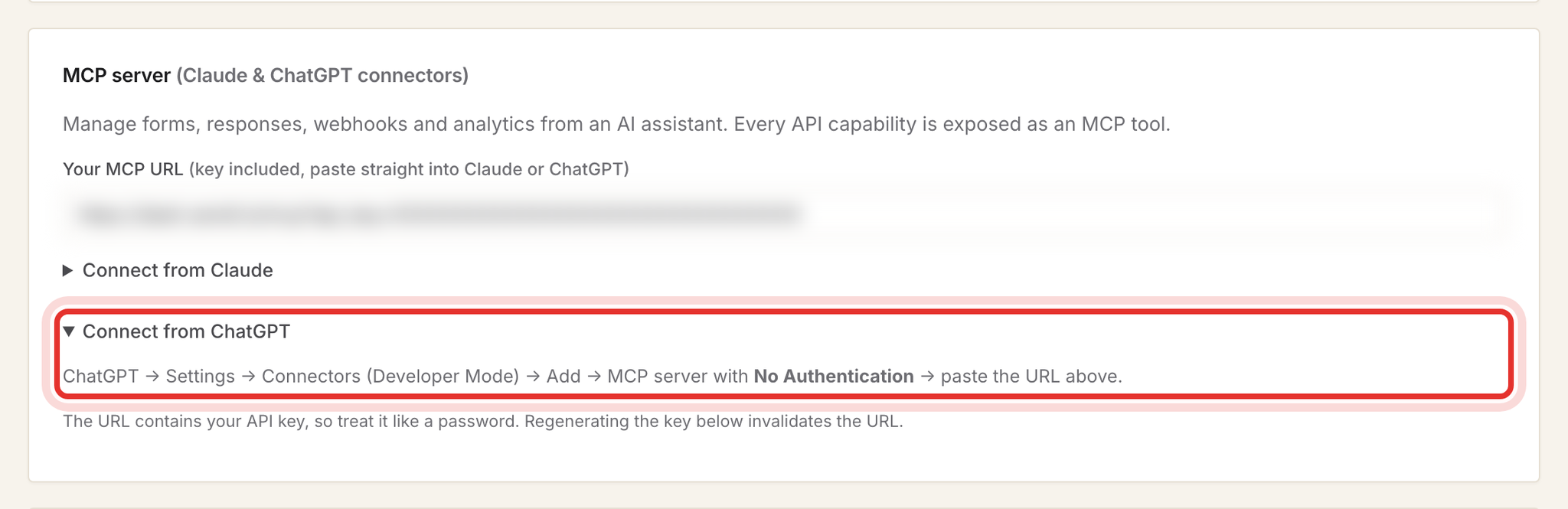
In ChatGPT, go to Settings, then Connectors (Developer Mode), then Add, then MCP server. Set authentication to No Authentication (the key is already in the URL) and paste your URL. ChatGPT changes these menu names from time to time; if they differ, look for Developer Mode and adding a custom MCP server.
Step 6, Point the AI at MyVA Support
Start a new chat and type: "Call list_workspaces, then use workspace_id 18 (MyVA Support) on every Sendl tool call." The workspace switcher in Sendl has no effect on the AI. Without workspace 18 it looks in your own empty workspace and reports no forms or candidates.
The AI can list assessments and their invitations, read sittings with their integrity summary, show grading breakdowns, list interviews and read full interview reports. It can also do things that change data or e-mail candidates: grade written answers, invite or re-send, revoke an invitation, reply to a candidate, or delete a submission. Your AI app usually asks first; say no unless you meant it.
Step 7, Ask it to review candidates
Name the workspace in every prompt, as in these examples. Forgetting it is the most common reason the AI finds nothing. All of these are read only:
- "In MyVA Support (workspace_id 18), run list_forms and tell me which assessments have the most completions this month."
- "In MyVA Support (workspace_id 18): for the HR & Operations Coordinator assessment, run list_invitations and list everyone who opened their link but has not completed, with the invite date."
- "In MyVA Support (workspace_id 18): list_submissions for the Software Developer assessment (status complete), then get_grading for each and give me a table of candidate, objective score, and written answers pending or reviewed."
- "In MyVA Support (workspace_id 18): list_attempts for the Digital Ads assessment, rank sittings by focus lost and time away, then get_session_integrity for the top three and summarise what lowers confidence, including harmless explanations."
- "In MyVA Support (workspace_id 18): list_interviews with status assessed since 1 October, then get_interview_report for each and compare spoken English grade, percentiles and key findings in one table."
- "In MyVA Support (workspace_id 18): find the interview for candidate <name> and draft three neutral follow-up questions based on the report."
Treat the answers as a starting point. Integrity readings are advisory, and an unmarked written answer shows as pending, not zero. Check anything important on the candidate's page in Sendl before you decide.
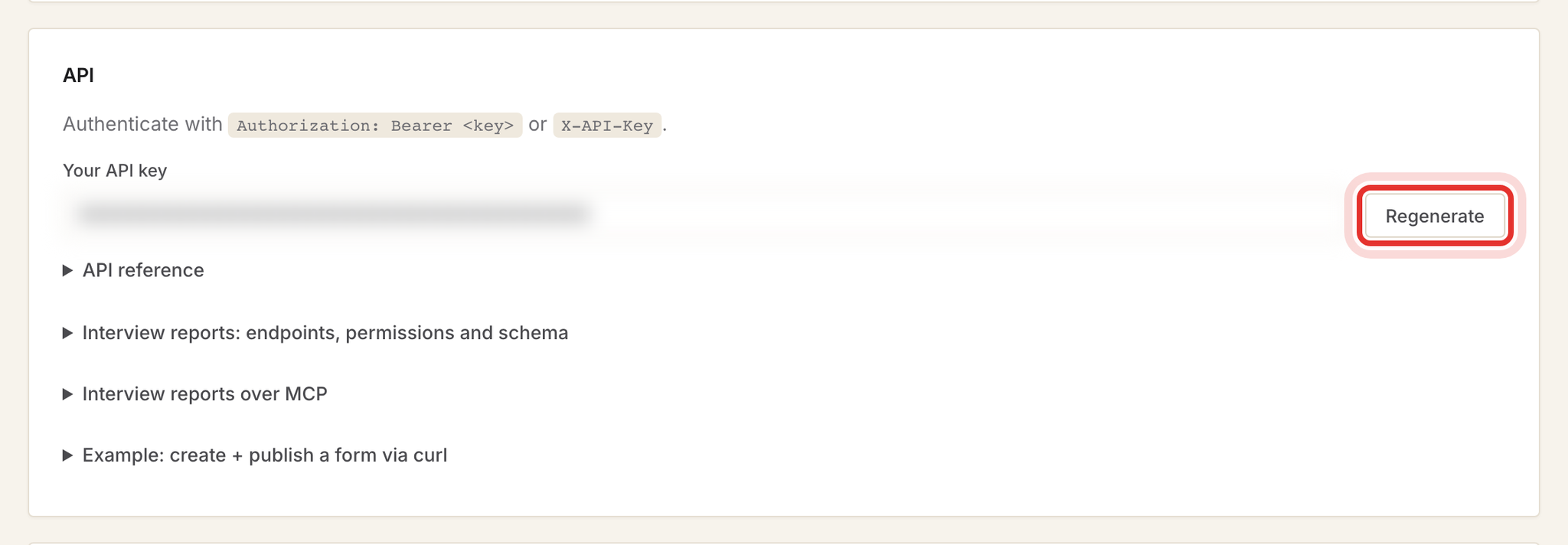
Step 8, Leave Regenerate alone
Under API in Settings, Regenerate replaces your key. The old key and your MCP URL stop working at once, and you must add the connector again with the new URL. Only use it if your URL has been exposed.
Privacy cautions
- Candidate names, answers, recordings and reports go into your AI chat. Use only the company's approved Claude or ChatGPT account, never a personal one.
- Do not share chats that contain candidate data.
- Do not let the AI make the hiring decision. Use it to sort and summarise, then review the candidate yourself.
Common problems
- AI says there are no forms or candidates: tell it to use workspace_id 18.
- "Authentication required" error: the URL was copied incompletely or the key was regenerated; copy it again from Settings and update the connector.
- AI says a tool "requires the Pro plan": that label reflects your own account; calls with workspace 18 still work.
- AI asks for a form id: it needs the number from list_forms, not the code in the Sendl page address.
- Only some submissions came back: results are paged; ask it to fetch the next page.
- Connector stopped working for a teammate: each person needs their own URL; never share yours.
What success looks like
Your AI chat lists MyVA Support assessments and answers questions about candidates without you opening each record. To check a result in Sendl, see Review results and share a candidate with the team and Track candidate progress and manage your review list.