For hiring staff: how to pick the right assessment for a job, create a candidate's invitation, and know what the candidate gets.
Step 1, Find the assessment for the job
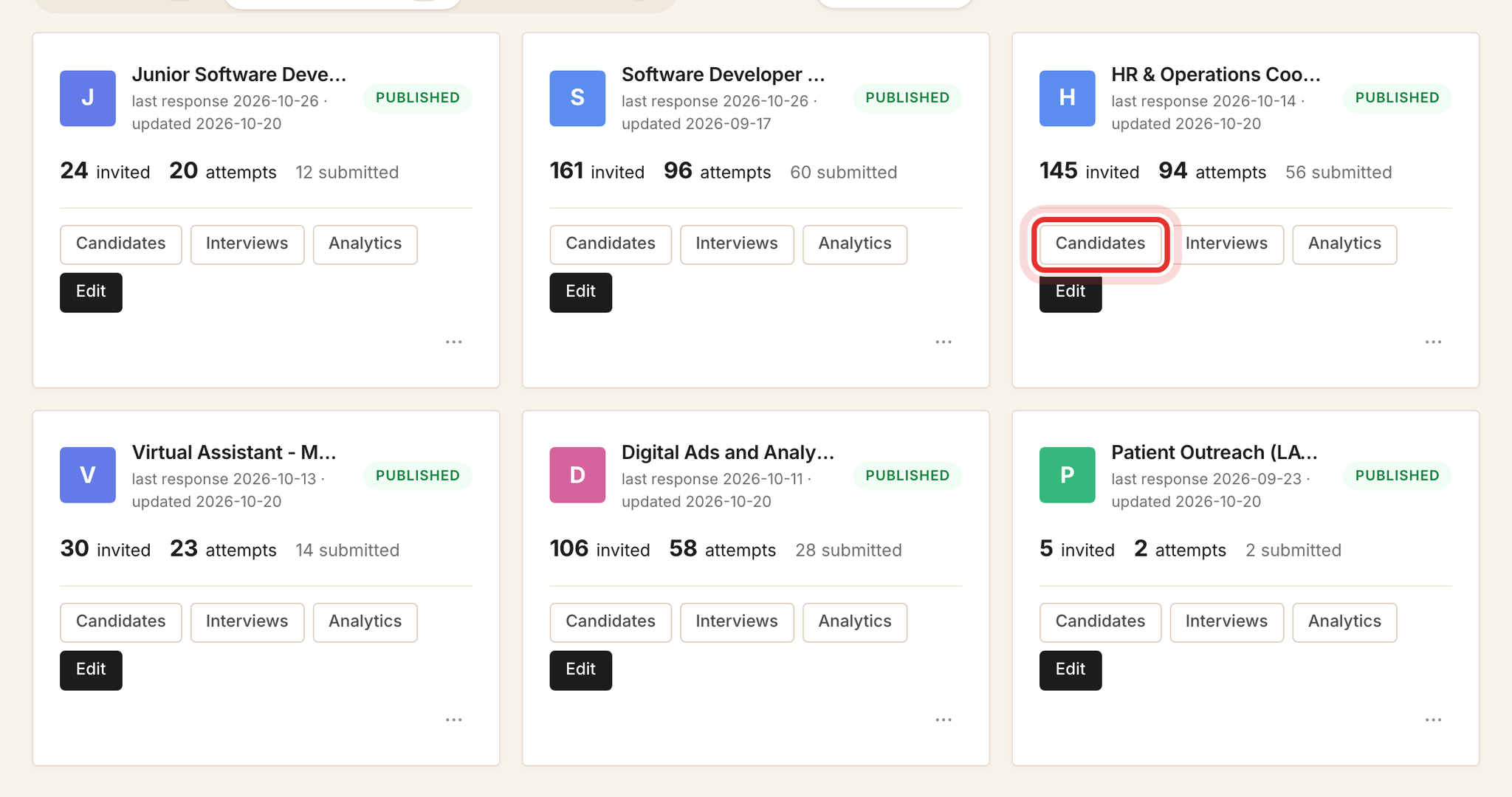
Sendl has no separate "positions" page. Each job is an assessment, and the assessment title is the position title. Open Assessments in the top bar, find the card whose title matches the job, and click Candidates on that card.
Pick carefully. An invitation belongs to one assessment and cannot be moved to another one later. If you invite someone to the wrong one, withdraw it and invite them again from the right assessment.
Step 2, Check whether the hiring process already invites them
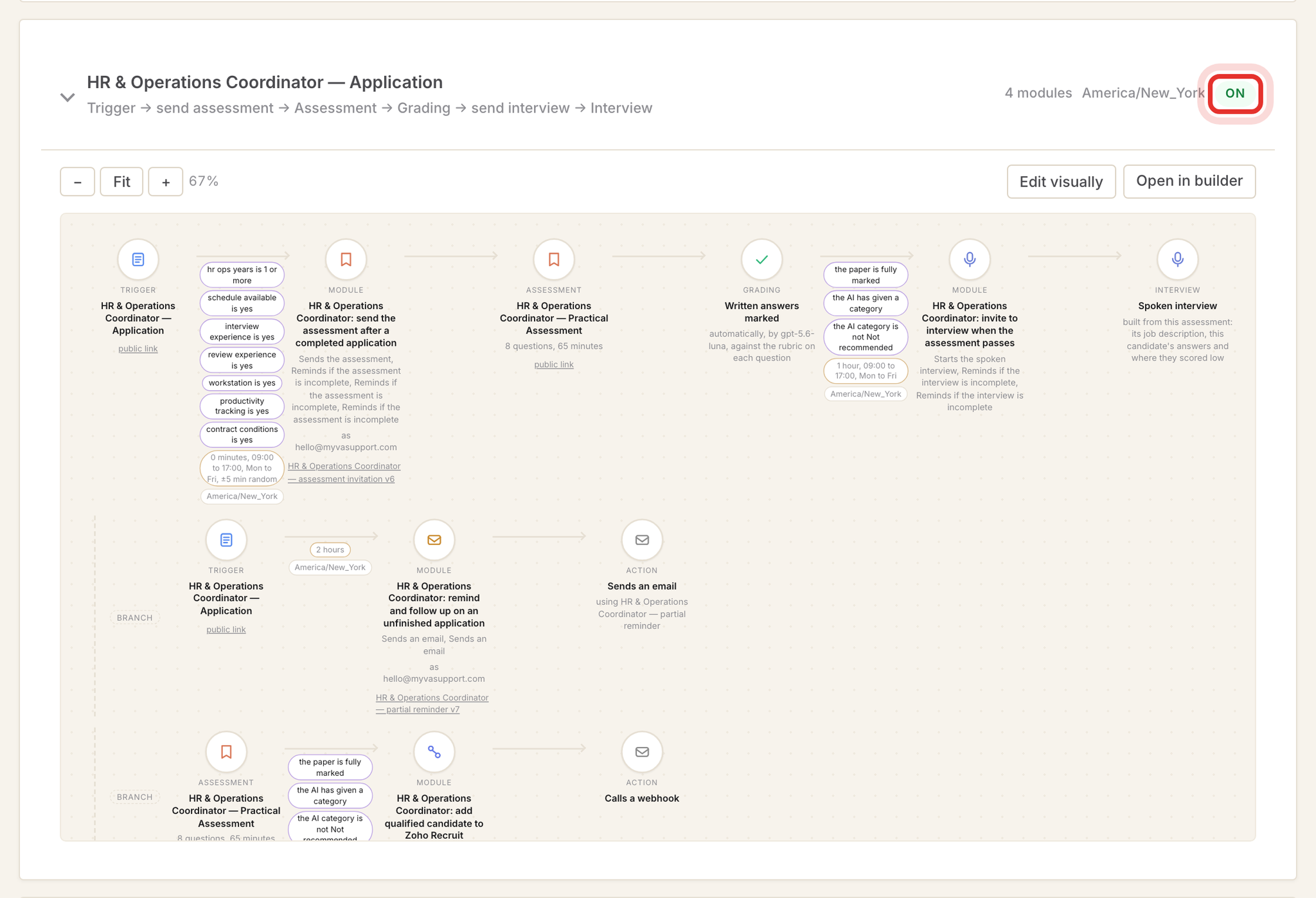
Open Jobs / Recruiting and expand the pipeline for the job. When it shows On, candidates who complete the application and pass its filters get the assessment e-mailed to them automatically, followed by reminders.
Invite by hand only for people who did not come through the application form, or when you were asked to. Sendl does not merge duplicates, so inviting someone the pipeline already invited gives them two live links.
Step 3, Check how long links stay valid
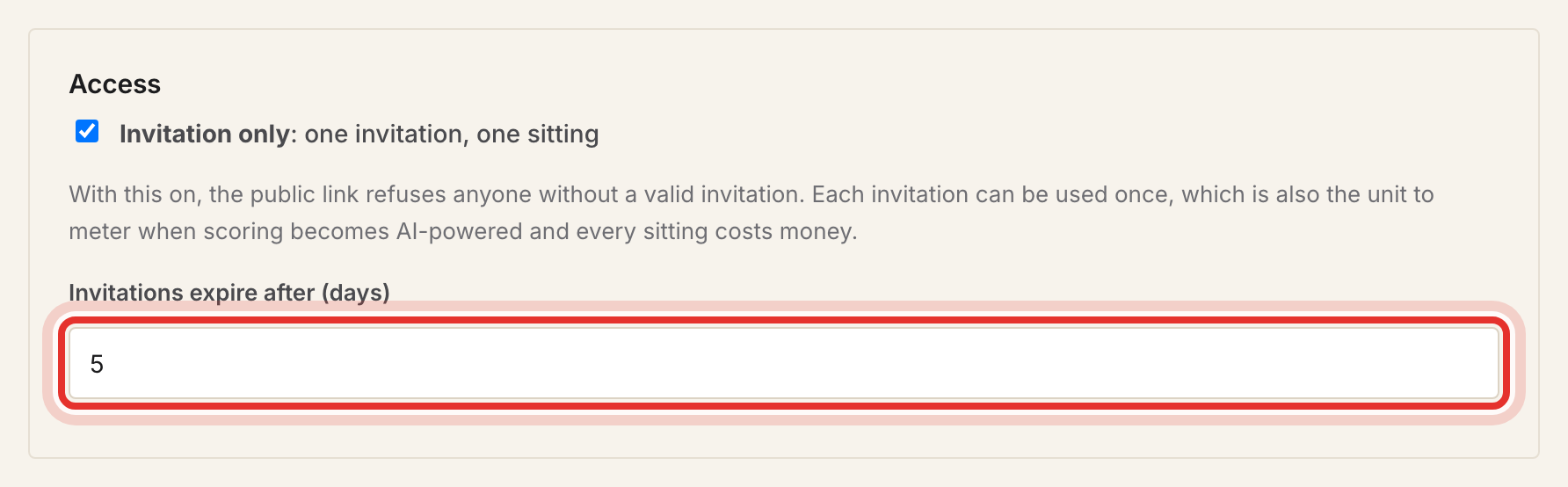
On the Candidates page, click Assessment settings and scroll to Access. Invitation only should be ticked, so only invited people can sit the assessment. Invitations expire after (days) sets how long each new link works.
The expiry date is fixed when the invitation is created. Changing this number later does not change invitations you already made, and there is no button to extend one.
Step 4, Check who the e-mail comes from and its wording
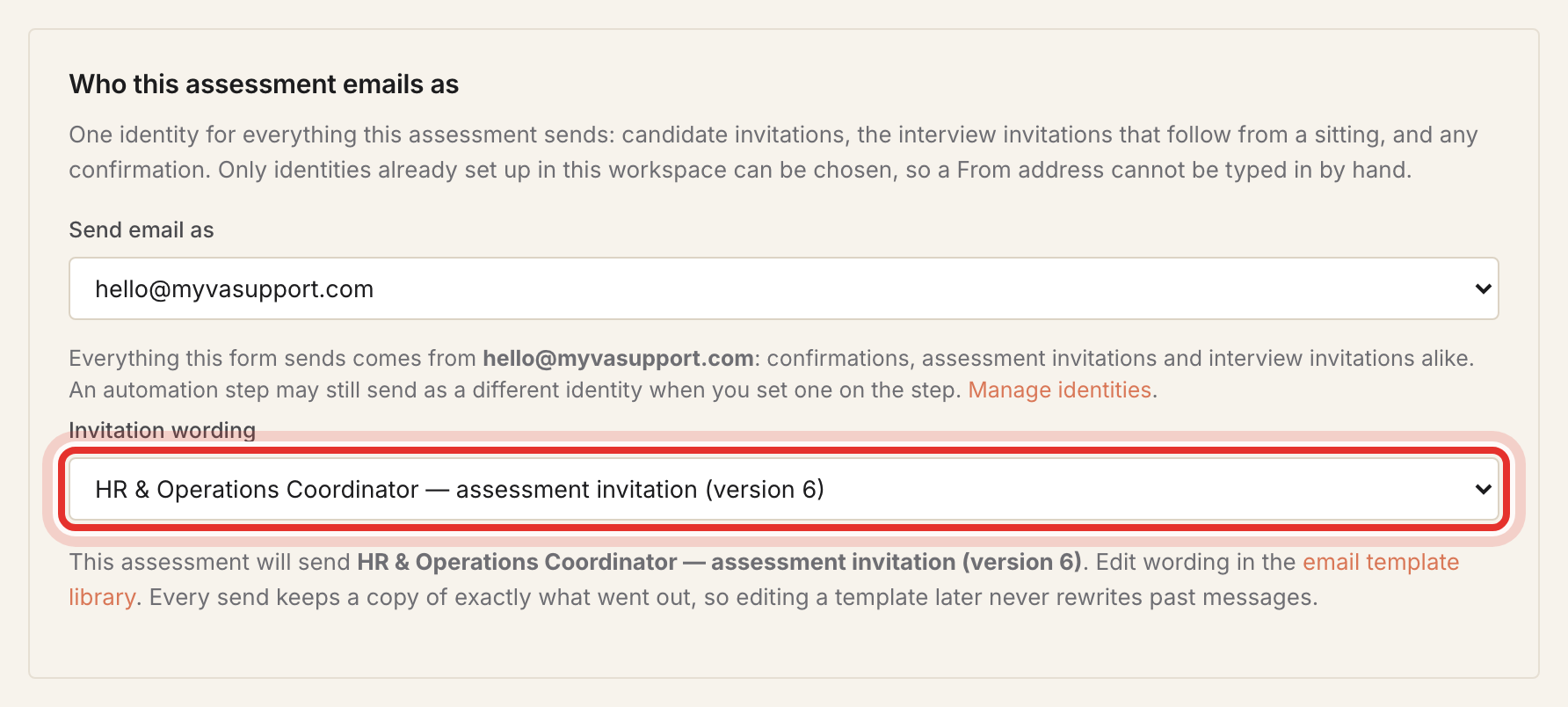
Further down the same page, Who this assessment emails as shows the sending address in Send email as. Invitation wording shows which e-mail template the candidate will get. Make sure the template names the same job. Ask an admin before changing either setting, because it affects every invitation for this job.
Step 5, Fill in the invitation
Go back to the Candidates page. In the box at the top:
- Type the address in Candidate email.
- Type their name in Name (optional).
- Decide on Email the link now. It is ticked by default, and the candidate is e-mailed as soon as you click Create invitation. Untick it if you want to send the link yourself.
- Click Create invitation once. Each click makes another live link.
The note under the form tells you how many days the link will be valid. Each invitation allows one sitting.

Step 6, Know what the candidate receives
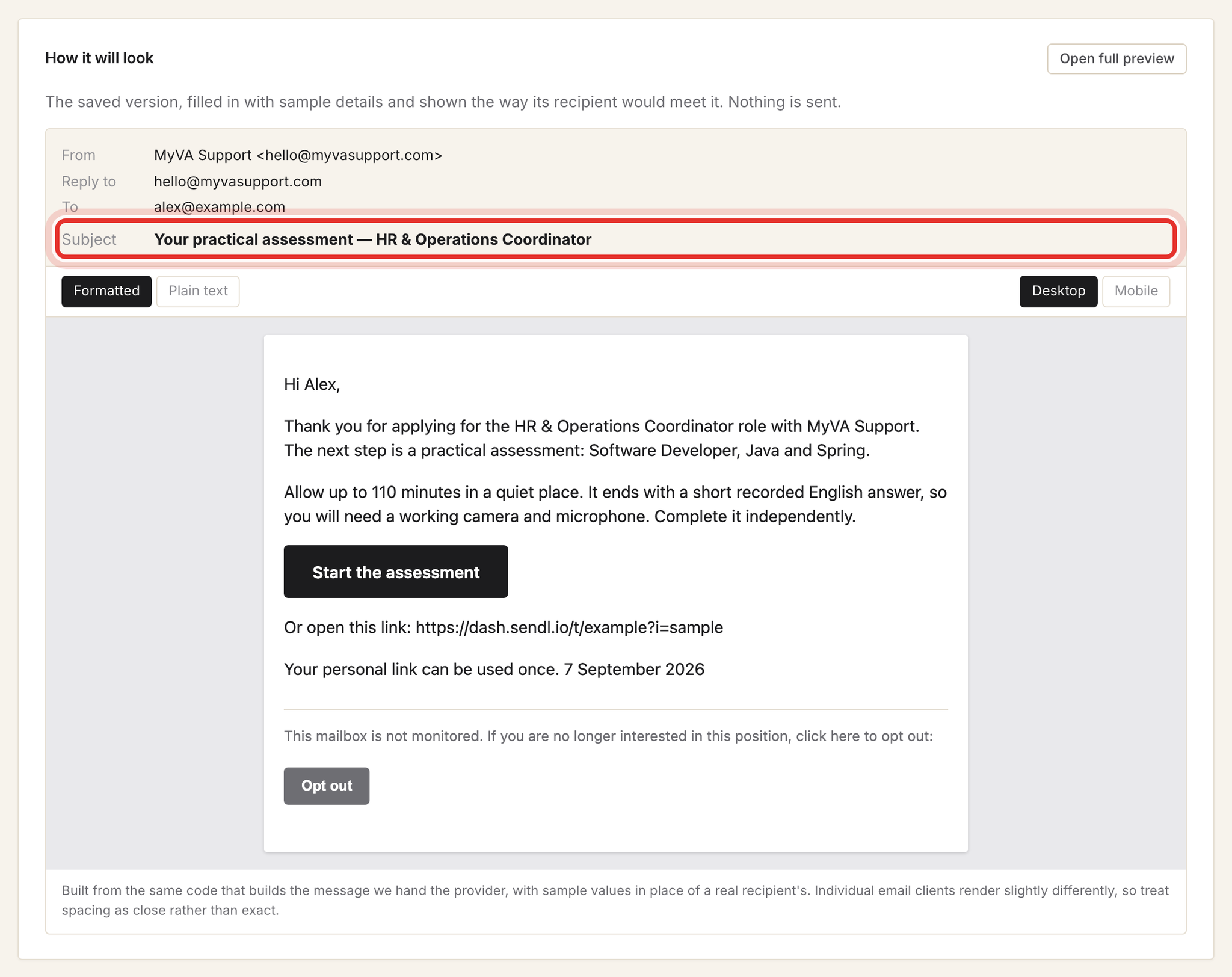
To see the e-mail, open Email templates and click the template named under Invitation wording. The How it will look panel shows the sender, subject and message with sample details, so the job title and minutes in that preview are placeholders. Nothing is sent from this page.
The real e-mail has a Start the assessment button with the candidate's personal link and the date it expires. The link works once.
Step 7, Copy a candidate's link
Find the candidate in the list and click Copy invitation link, then paste it into your message. This works for invitations that were never e-mailed too. Resend e-mails the same link again and does not give more time. Withdraw removes their link and sitting.

If someone applied by e-mail instead of Indeed or the form
Sendl has no button to start an interview from a résumé you received by e-mail. What to do depends on the role:
- HR and Operations Coordinator, Virtual Assistant - Medical or Digital Marketing Specialist: do not invite them in Sendl. Andrea adds them to the job opening in Zoho Recruit with their PDF résumé, and Sendl e-mails them the interview invitation within the hour. See Step 4 of How candidates sync between Sendl and Zoho Recruit.
- Any other role: invite them to the assessment with Step 5 above. They reach the interview after it, like everyone else.
Pick one route. Someone already invited to that role's assessment is skipped by the Recruit route, so they never get the résumé interview.
Common problems
- Candidate says the link "can't be used": you shared the assessment's public or Share link. Send them their own Copy invitation link instead.
- Link expired: Resend will not help. Create a new invitation.
- Candidate got the e-mail when you meant to send it yourself: Email the link now was still ticked. The link is the same either way.
- A page of code-like text after Create invitation: the assessment is not ready (a section has no minutes or no questions). Tell whoever owns the assessment.
- "Invitation created, but the email failed": copy the link from the list and send it yourself, then report the sending problem to an admin.
- Greeting says "Hi there" although you typed a name: custom wording templates may not use the name you typed. The link still works.
What success looks like
The candidate appears in the right assessment's list as Sent (or Not sent if you copied the link yourself), with a live link. Next: Track candidate progress and manage your review list, and if they get stuck, Help candidates with assessment or interview problems.