For MyVA Support staff: how to sign in to Sendl with an e-mailed link, switch to the MyVA Support workspace, and find each part of the app.
Step 1, Ask for a sign-in link
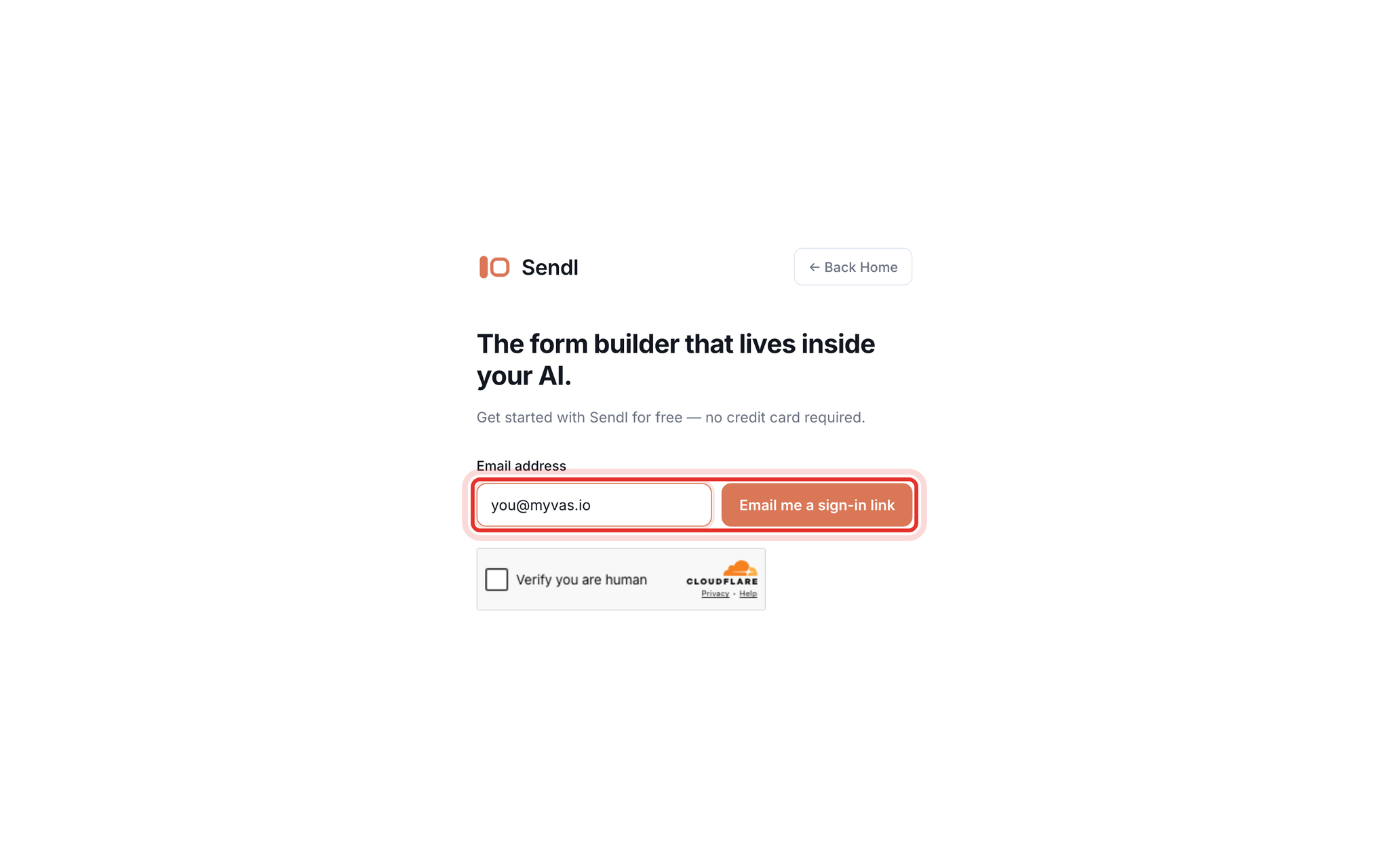
- Open https://dash.sendl.io/login.
- Type your work e-mail in Email address. Use the same address your invitation was sent to.
- Click Email me a sign-in link.
There is no password. A green message tells you to check your e-mail. If a Cloudflare Verify you are human box appears, tick it first. You can request 2 links per 15 minutes and 5 per day, so wait for the e-mail instead of clicking again.
Step 2, Open the link in the e-mail
The e-mail subject is Your Sendl sign-in link (or Finish setting up your Sendl account the first time). Click Sign in in the browser you work in. You see You're signed in and Sendl opens your dashboard.
The link works for 15 minutes and up to 3 clicks. It signs in only the browser that opens it. If that browser is already signed in as someone else, you stay as that person. You stay signed in until 24 hours pass without using Sendl.
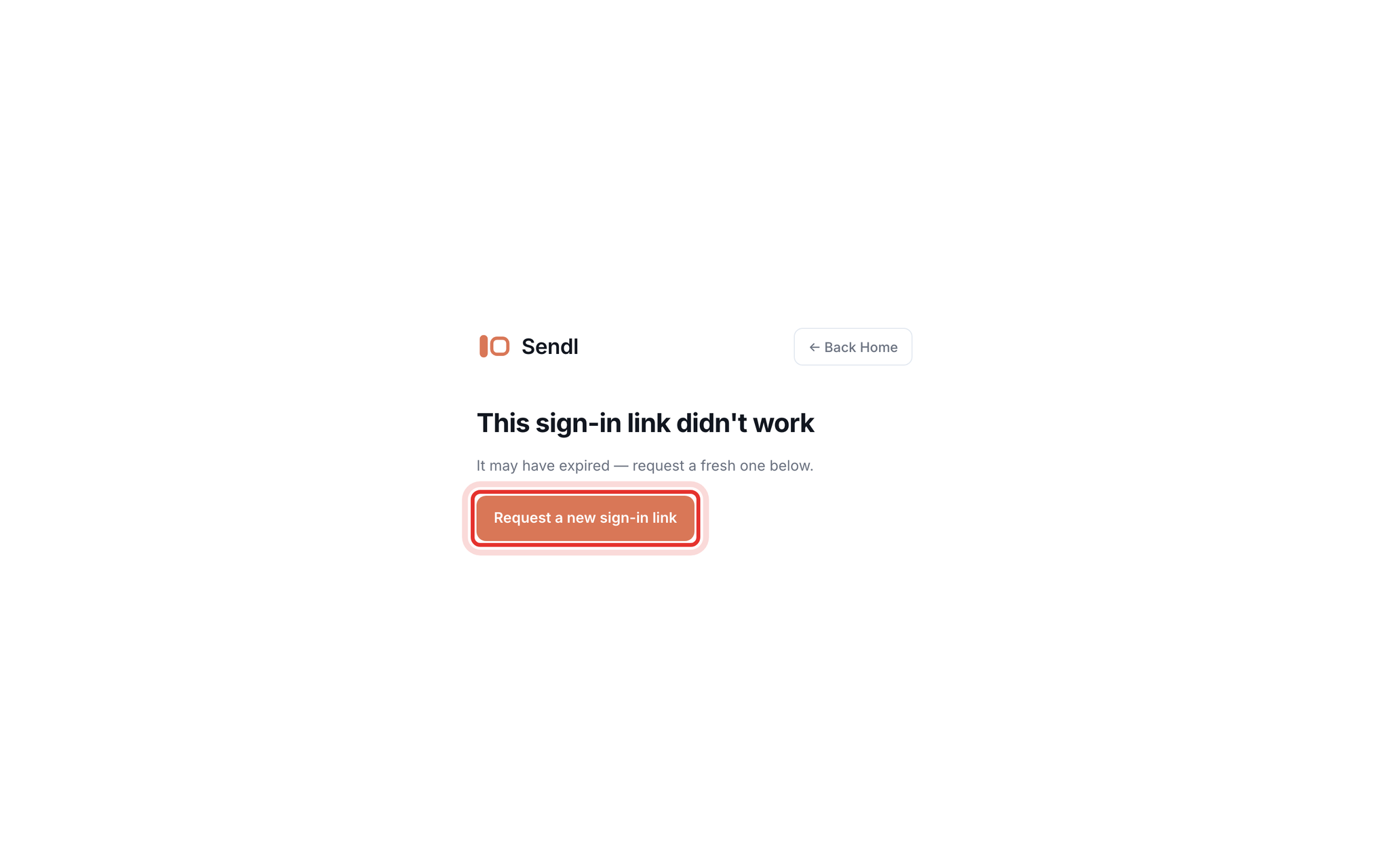
If the link is too old or used up, you see This sign-in link didn't work. Click Request a new sign-in link and start again.
Step 3, Switch to MyVA Support
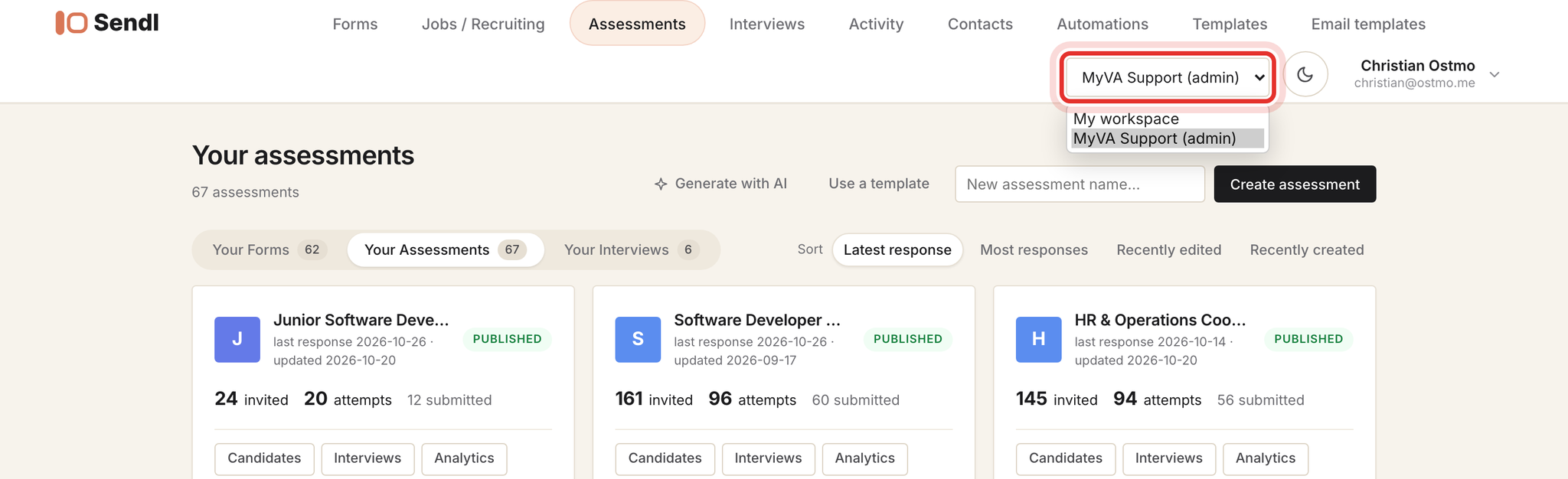
Every sign-in starts in My workspace, which is empty for staff. In the top right, open the box to the left of the moon icon and choose MyVA Support, shown with your role in brackets (for example MyVA Support (admin)). The page reloads in that workspace. Do this each time you sign in.
Step 4, Learn the main menu
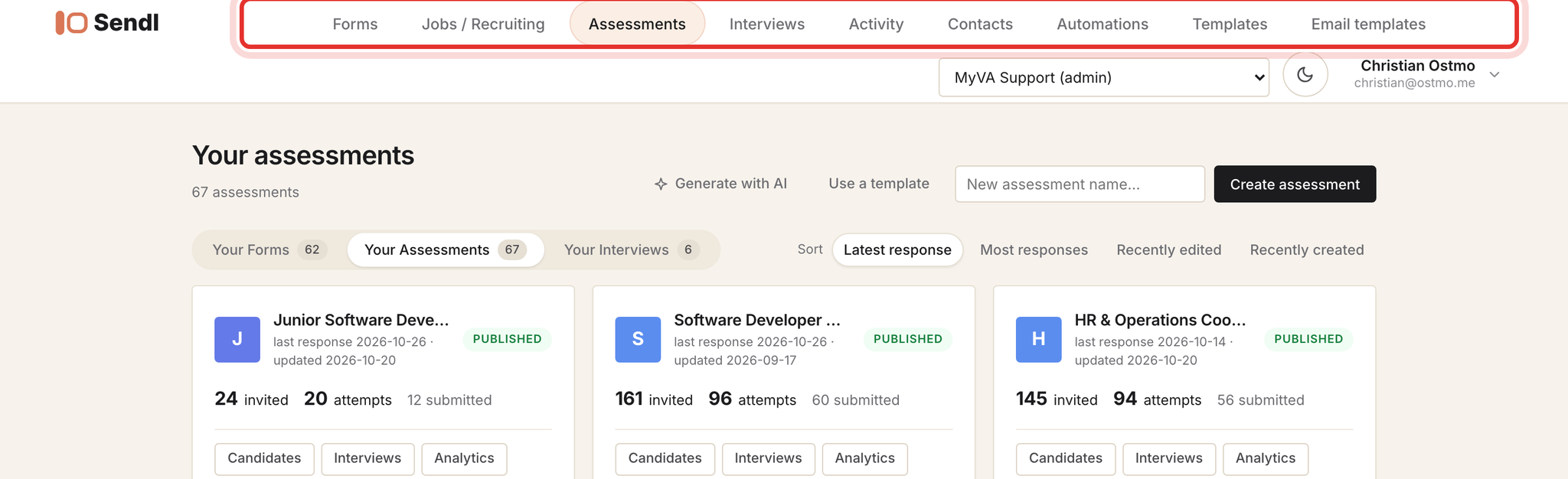
The menu along the top, from left to right:
- Forms: application forms and other forms.
- Jobs / Recruiting: the recruiting pipelines for each role.
- Assessments: each role's assessment, with Candidates, Interviews and Analytics buttons on every card.
- Interviews: interview setups and their results.
- Activity: the latest submissions, invites and interviews in the workspace (times in UTC).
- Contacts: the people in the workspace, with search.
- Automations: steps that run on their own, such as sending an assessment or a reminder after a form is submitted.
- Templates: ready-made forms to start from.
- Email templates: the wording of the e-mails Sendl sends for you. Opening it needs the editor role or higher.
Jobs / Recruiting, Assessments and Interviews only appear once you are in MyVA Support.
Step 5, Open the account menu
Click your name in the top right. The menu has Roadmap, Support, Settings and Log out. The Plan chip is your own account's plan, not MyVA's. The moon icon next to it switches dark mode for your browser only.
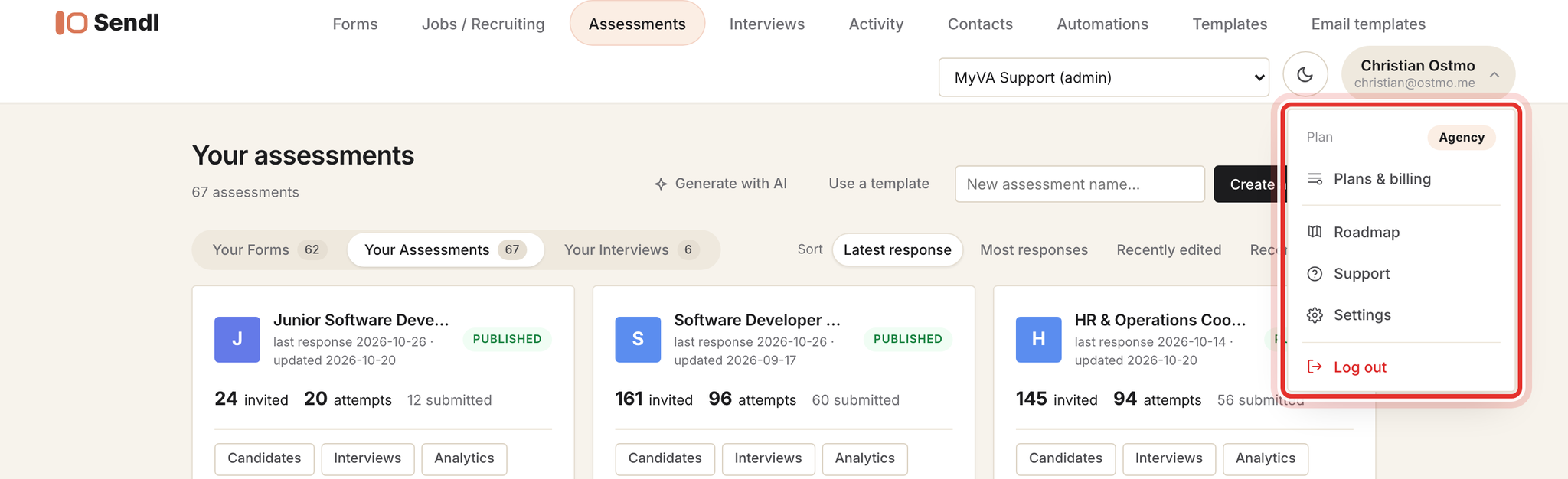
Step 6, Find support and these guides
Choose Support in the account menu. Use Contact us for questions and Report a bug when something is broken; you can attach a screenshot. The how-to guides, including this one, are at hub.sendl.io/help.
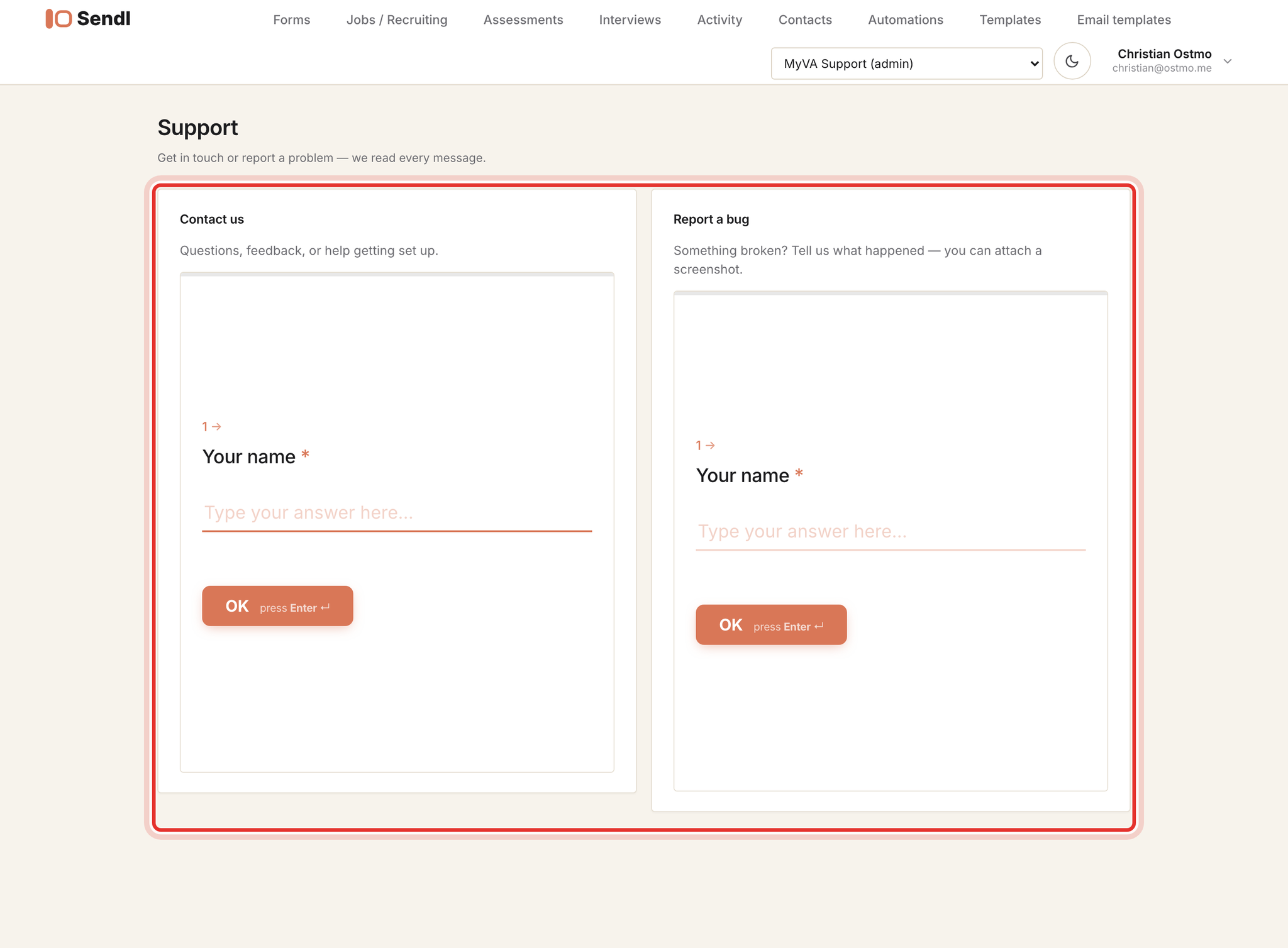
Common problems
- "My assessments are gone": the workspace box still says My workspace; switch to MyVA Support.
- "Too many sign-in requests": you asked for too many links; use the newest e-mail or wait 15 minutes.
- No e-mail: check spam, and check you typed the address your invitation went to.
- Link opened the wrong account: open it in the browser you work in, or log out of the other account there first.
- A blank page saying CSRF token mismatch: the tab was idle too long; reload the page and sign in again.
- Your role cannot do that: your role does not allow that action; ask a MyVA Support admin.
What success looks like
You are signed in, the workspace box shows MyVA Support, and you can reach every menu tab and the Support page. Next: Invite a candidate into the right hiring process and Track candidate progress and manage your review list.