For hiring staff: how to work out why a candidate cannot open or finish an assessment or interview, and which button fixes it.
Step 1, Ask the candidate what they see
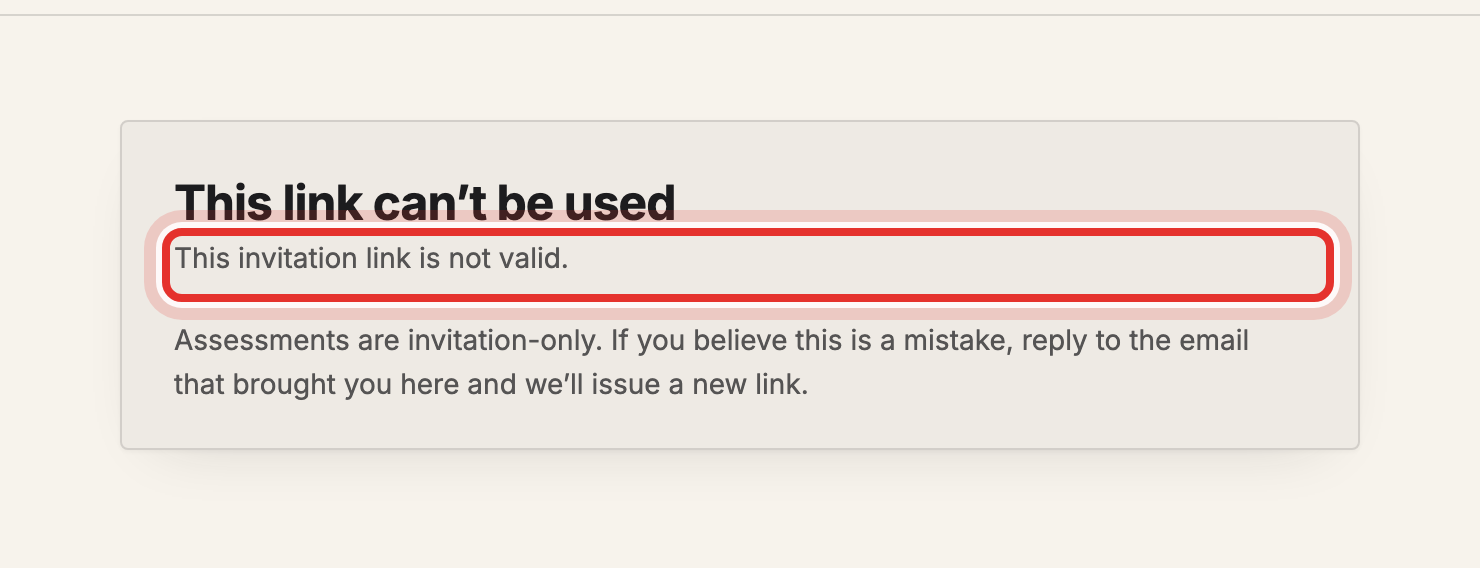
Ask for three things: the exact message on the screen (a screenshot is best), which link they opened, and which browser and device they use. An assessment link that cannot be used shows This link can't be used with one reason line:
- This invitation link is not valid. They opened a general link, or the link is broken or for another assessment. Send their own invitation link.
- This invitation has expired. Create a new invitation (Step 4).
- This invitation has been withdrawn. Someone clicked Withdraw. Create a new invitation if that was a mistake.
- This assessment has already been completed. or already been taken. The one sitting is used. A re-sit needs a new invitation.
The plain message This assessment is not accepting responses. means the assessment is in draft, closed or full. You will not see this while signed in, because staff skip that check.
Step 2, Find the candidate and check the status
- Open Assessments and click Candidates on the assessment's card.
- Type the candidate's e-mail in Search and click Apply.
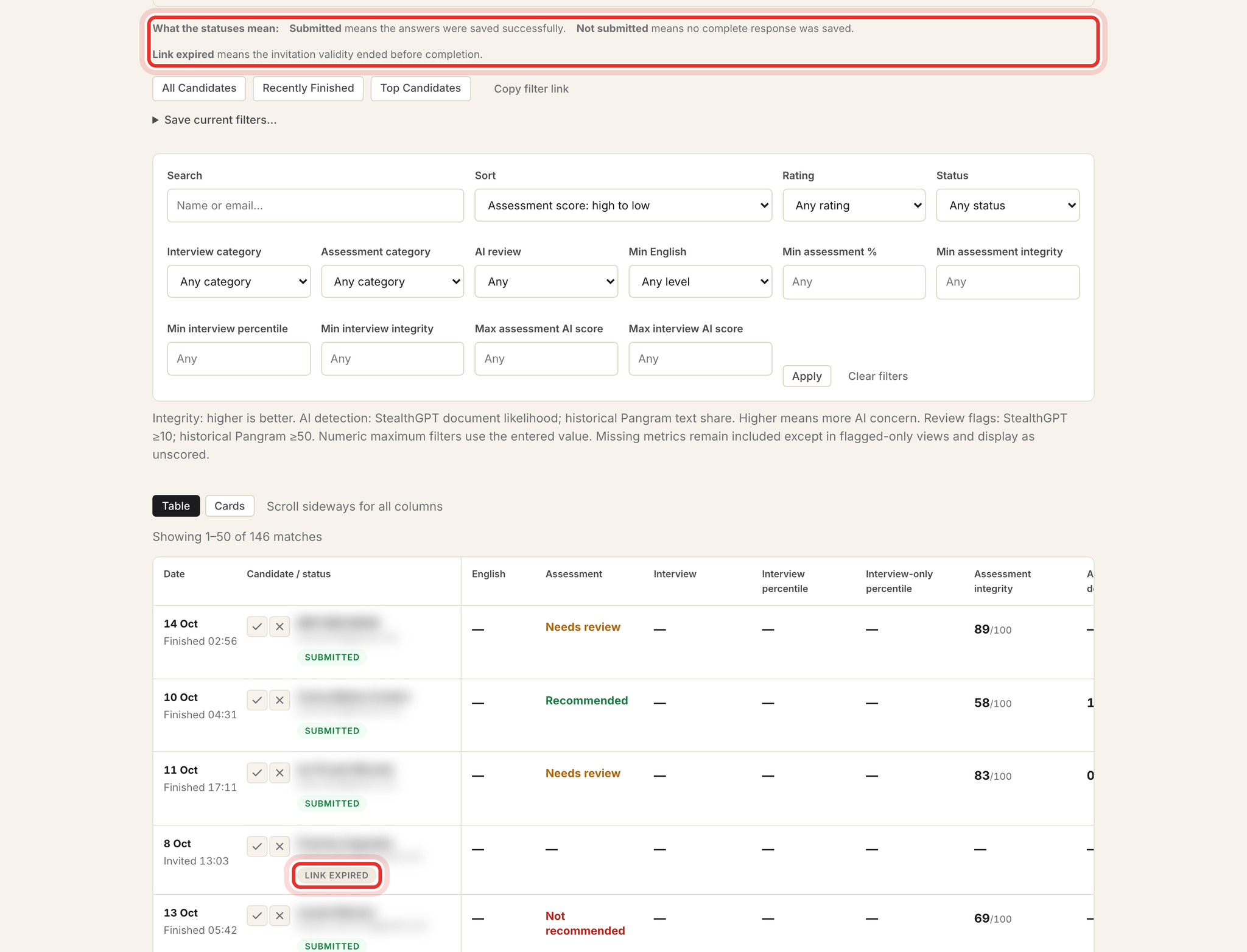
- Read the status under the name.
Link expired means the time ran out before they finished. Device check means they opened the link but stopped in the camera, microphone or speaker checks. Not submitted means nothing was saved; their same link still starts a fresh sitting until it expires.
For Device check problems, tell the candidate to:
- Allow the camera and microphone in the browser's site settings (the lock icon next to the address), then press Try again.
- Close other apps that use the camera, such as Zoom or Teams.
- Use a recent Chrome, Edge, Firefox or Safari. If the last check shows Browser not supported, the browser cannot record and they must switch. Recording cannot be skipped.
Step 3, Resend or copy the link
If the invitation is still live and the e-mail never arrived, click Resend on the row. This e-mails the candidate straight away and keeps the original expiry date. To send it yourself, click Copy invitation link and paste it into your own message. A candidate who lost the tab or changed device should reopen this same link; the clock keeps running while they are away.

Step 4, Create a new invitation for expired or used links
There is no extend or reset button. Expired, withdrawn or used invitations need a new one:
- At the top of the candidates page, type the Candidate email and, if you like, the name.
- Leave Email the link now ticked to e-mail them, or untick it to copy the link yourself.
- Click Create invitation once. Each click makes another live link.
Delete on the old row does not free a completed invitation, so a re-sit always needs this step.

Step 5, Check how long links last
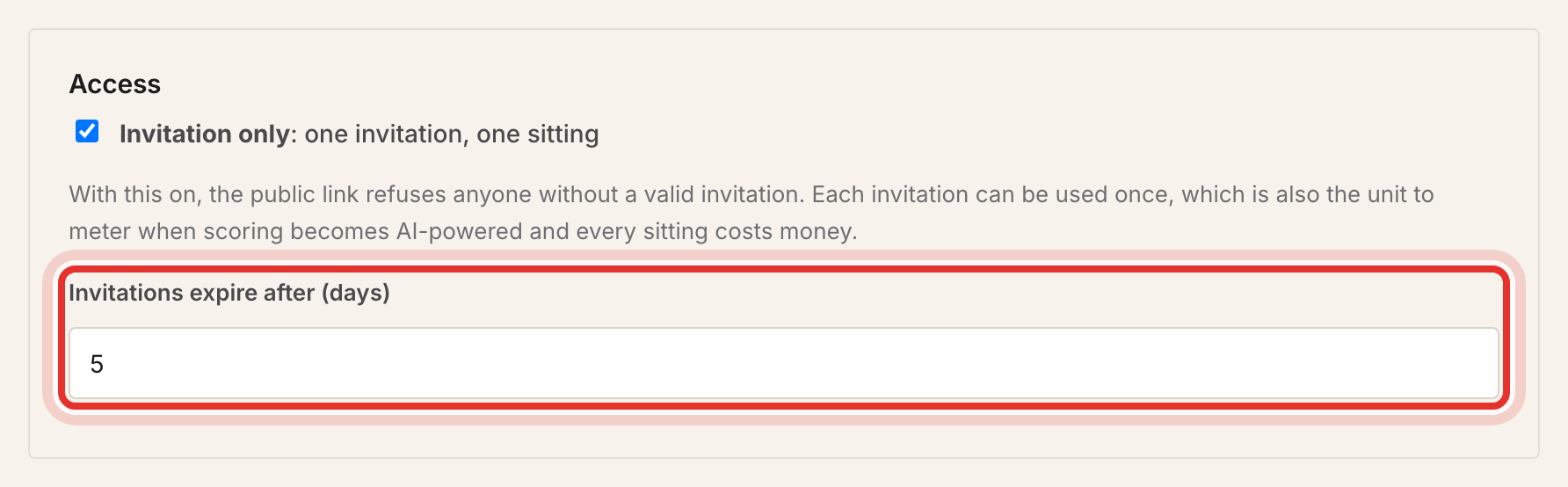
Open Assessment settings and look under Access at Invitations expire after (days). Changing it only affects new invitations, so tell candidates the date in their e-mail still applies.
Step 6, Fix interview link problems
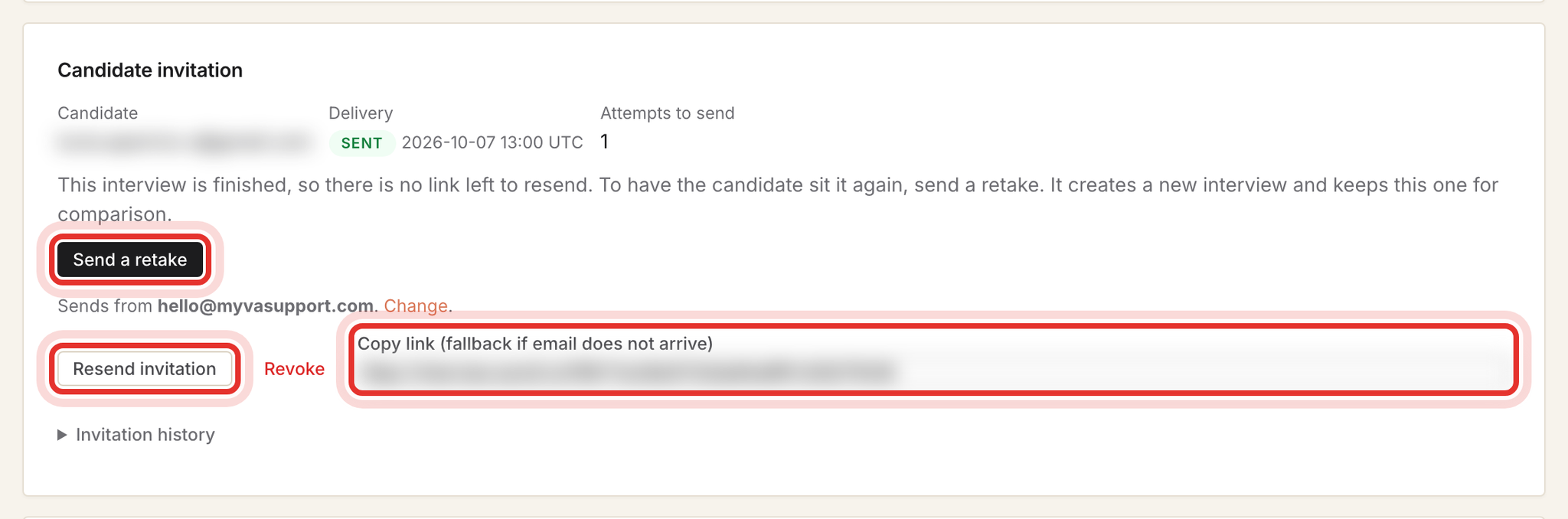
Open Assessments, click Interviews on the assessment's card, then Review on the candidate's interview, and find the Candidate invitation card. Check Delivery and the status first: the candidate's screen reports every refusal as a connection problem.
- E-mail missing: Resend invitation (e-mails them, same expiry) or copy the Copy link box.
- This link has expired: interview links cannot be extended. Send a new one with Send Interview on the candidate's assessment Review page. Revoke stops a live link at once.
- Finished but dropped or unusable: Send a retake. It e-mails a new interview and keeps the old one.
- No microphone access yet: allow the microphone in the browser, then Test my microphone again.
Common problems
- Candidate used the assessment's Share link: send their own link from Copy invitation link.
- Resend did not give more time: it never does; create a new invitation.
- Link works for you but not the candidate: you are signed in and skip the checks; test in a private window.
- Locked out after reloading near the deadline: the invitation expired mid-sitting; create a new one.
- Interview says it could not connect: check the interview status first; an expired or completed interview needs a new link.
- Wrong person invited: Withdraw the row; their link stops working.
What success looks like
The candidate has one working link and has finished the checks or the interview. Related: Invite a candidate into the right hiring process and Track candidate progress and manage your review list.