For hiring staff: how to read a candidate's assessment and interview results, record your decision, and share the candidate with the team.
Step 1, Open the candidate's review page
- Click Assessments in the top bar and open the assessment.
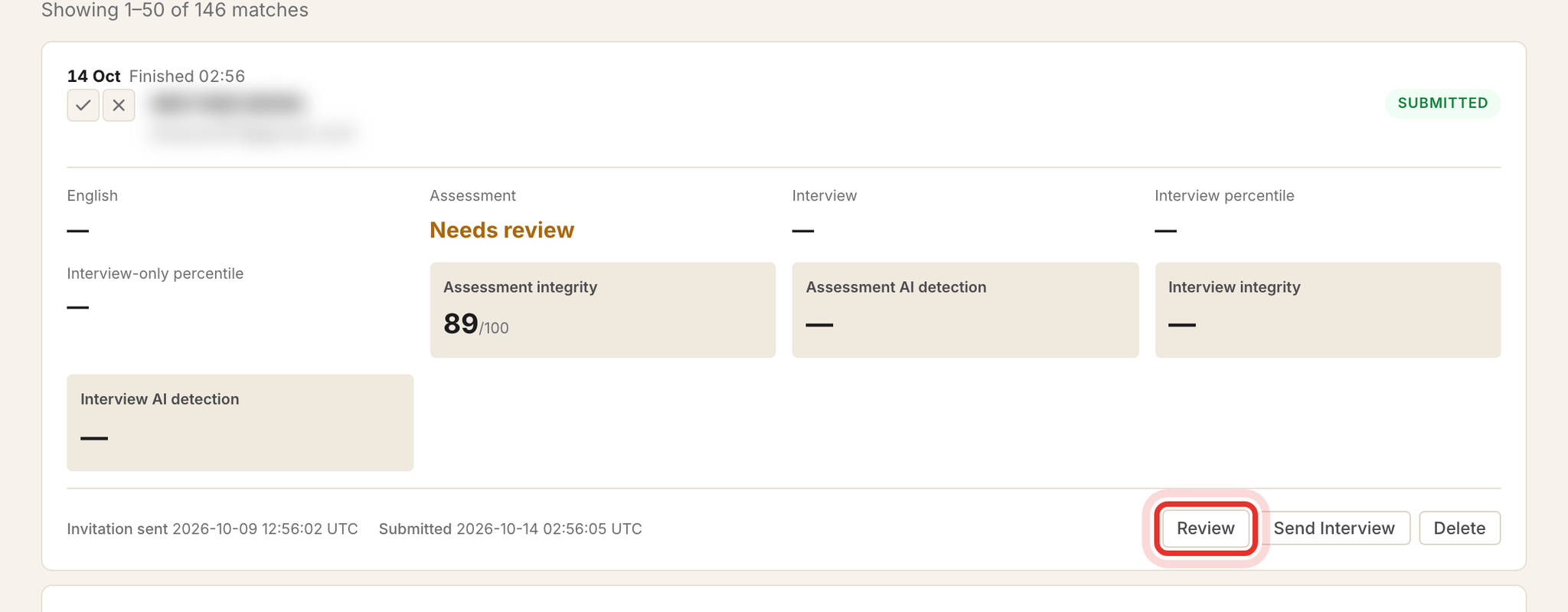
- On the candidates page, find the person. Cards shows each result on one card; Table shows more columns.
- Click Review.
Send Interview e-mails the candidate straight away with no confirmation, and Delete removes the recordings and integrity data for good. Neither is needed to review.
Step 2, Read the AI category
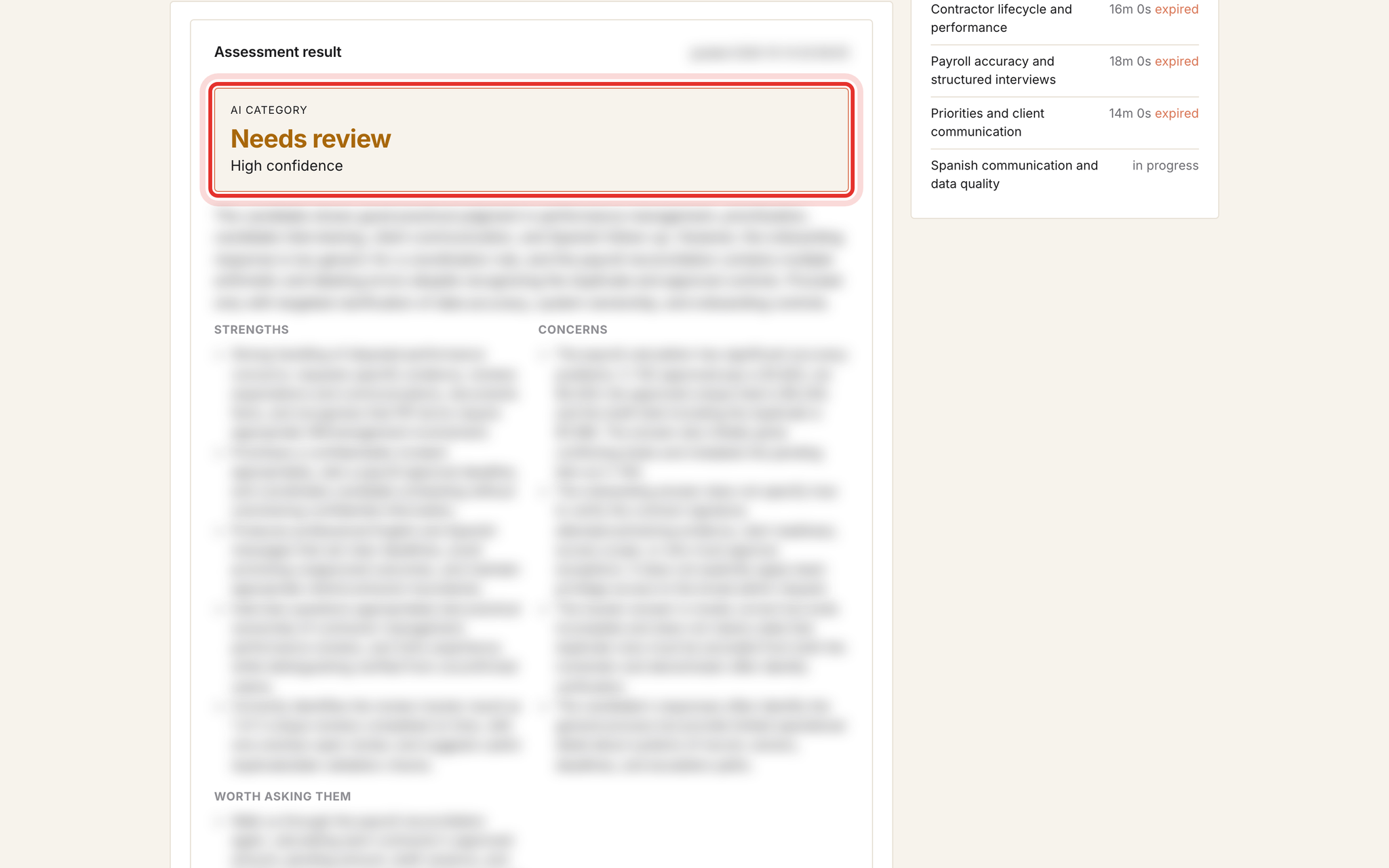
Scroll to Assessment result. The AI category is Recommended, Needs review or Not recommended, with a confidence level. Below it are Strengths, Concerns and Worth asking them, which make good interview notes. Open How each written answer read for a verdict on each answer, and scroll to Questions and answers to read what the candidate wrote.
The category is advice for a person to review. There is no button to re-grade or change it; record your own decision with Approve or Reject (Step 4).
Step 3, Check the integrity signals
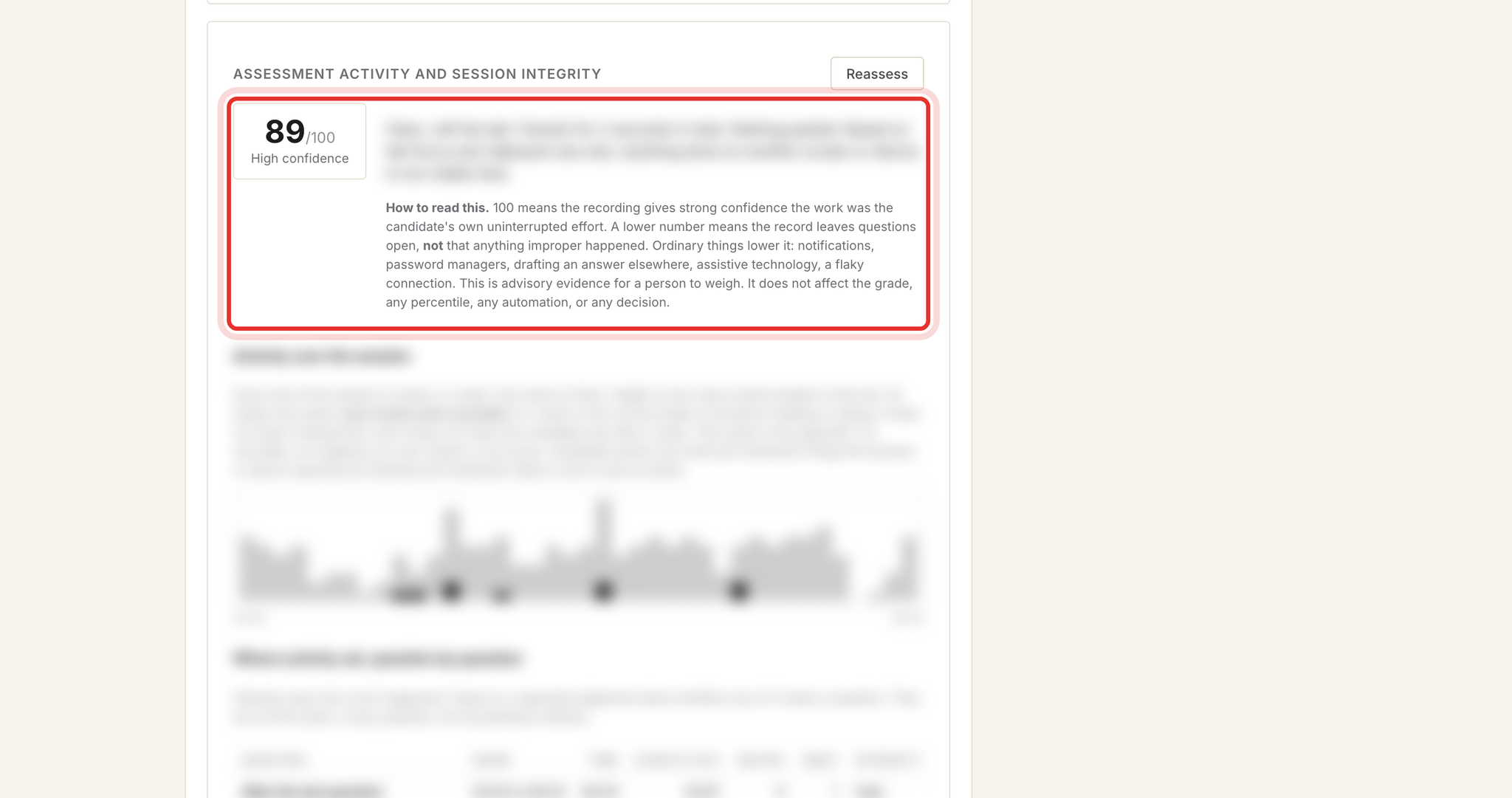
Further down, Assessment activity and session integrity gives a score out of 100. A lower number means the record leaves questions open. It does not mean the candidate cheated, and it does not change the grade, the percentile or any automation. Read it with the Integrity timeline and the Summary box at the top right (Focus lost, Total away, Pastes, Second screen).
Do not click Reassess just to look again. Each click runs a new AI reading and costs credits.
Step 4, Approve or reject the candidate
Use the tick (Approve) or cross (Reject) next to the candidate's name. It saves at once; click the same button again to clear it. The rating is shared with the whole team and shows on the Candidates, Interviews and Responses pages. Nothing is sent to the candidate. A record without an e-mail address cannot be rated.

Step 5, Read the interview report
If the candidate has done the interview, click Interview on their card, or open Interviews in the top bar. The report shows the Likely percentile of applicants, spoken English, the Interview result card, the recording and the full transcript.
Download PDF saves the report for your records. The PDF is internal: it contains the candidate's e-mail, integrity detail and processing costs, and it does not include the AI category. Never send it to a candidate or client.
Leave Run the analysis again, Re-assess from audio, Send a retake, Resend invitation and Revoke alone. They cost credits, e-mail the candidate or stop their link.

Step 6, Share the candidate with a teammate
Sendl has no "send to colleague" button. Copy the address of the review page or interview page from your browser and paste it into chat or e-mail. The teammate must be a member of the MyVA Support workspace; if they are in a different workspace, Sendl switches them over when they open the link. Anyone outside the workspace sees We could not find that.
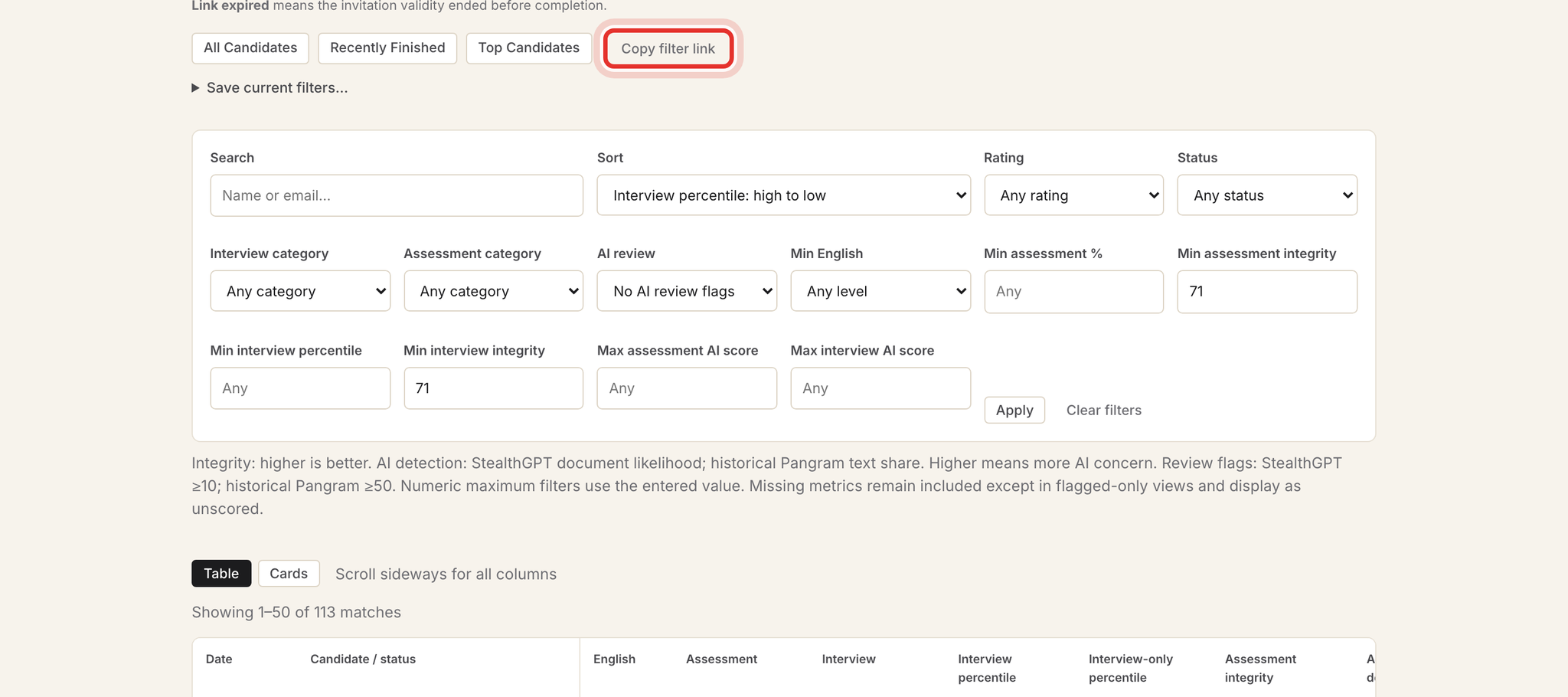
To share a whole shortlist, set the filters on the candidates page, click Apply, then Copy filter link. Filters saved with Save current filters… are only visible to you.
Step 7, Export the answers to a spreadsheet
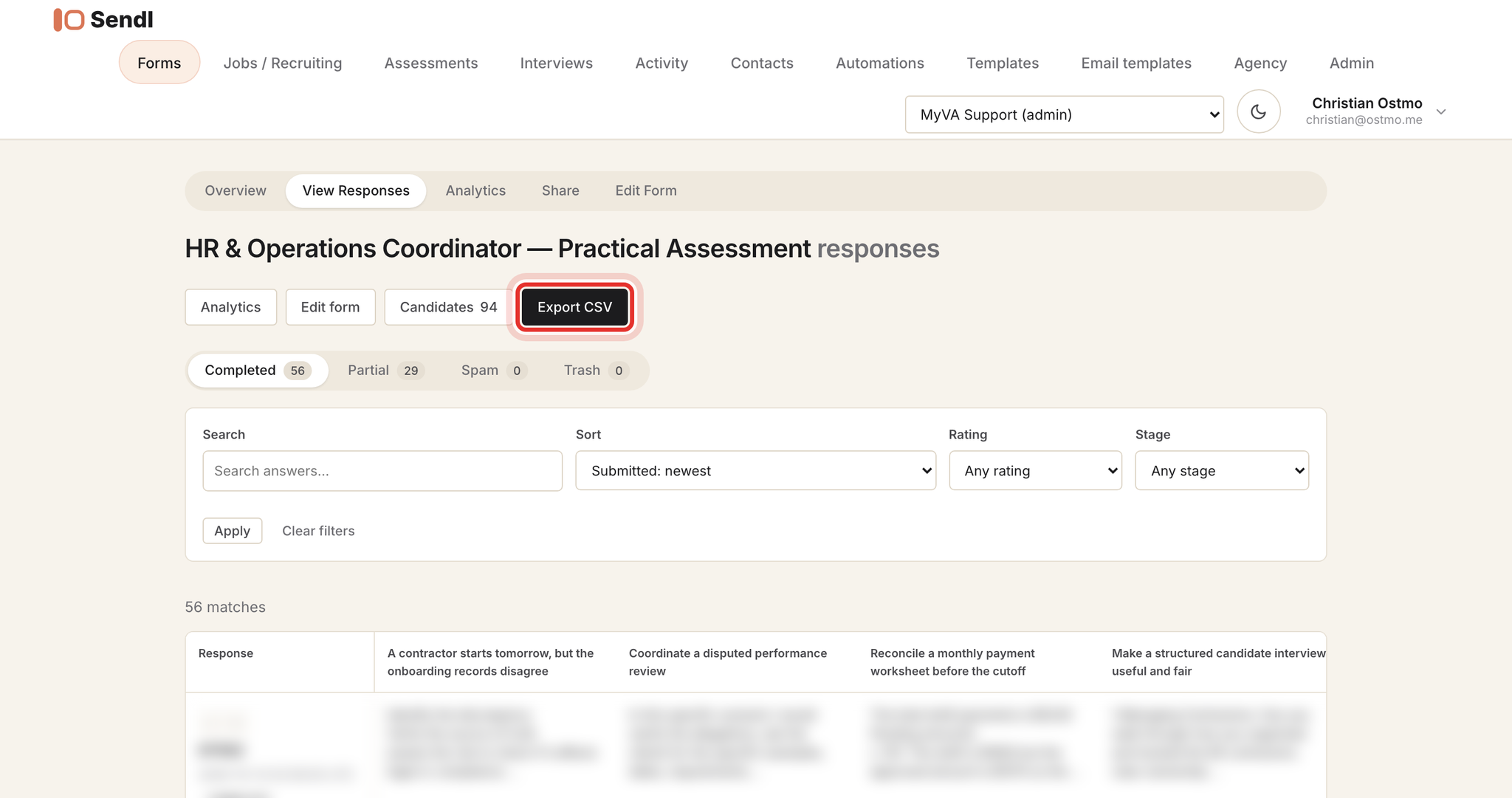
From the candidates page click Responses, then Export CSV. The file holds completed submissions only: submission ID, date, score, one column per question, and the candidate's IP address, referrer and browser. It has no AI category, integrity or interview columns, so filter by category on the candidates page instead. Treat the file as personal data and do not leave copies in shared folders.
Common problems
- Looking for a re-grade button: there is none; use Approve or Reject, or ask an administrator.
- Second screen says "not reported": the browser could not tell, which is not the same as "no".
- Teammate sees "We could not find that": they are not a member of the workspace; ask an admin to add them.
- Teammate sees "You do not have access to this": that assessment is hidden from them; an admin can give access.
- CSV has no categories: expected; use the category filters on the candidates page.
- Approve and Reject buttons missing: your role is viewer; ask an admin for editor access.
What success looks like
You can explain each candidate's category and integrity reading, your Approve or Reject is visible to the team, and colleagues open the same page from your link. Related: Track candidate progress and manage your review list and Connect Sendl to AI and use it to review candidates.