For hiring staff: how to see where each candidate is, narrow the list to the people who matter, and keep your own approved and rejected review list.
Step 1, Open the Candidates list for a role
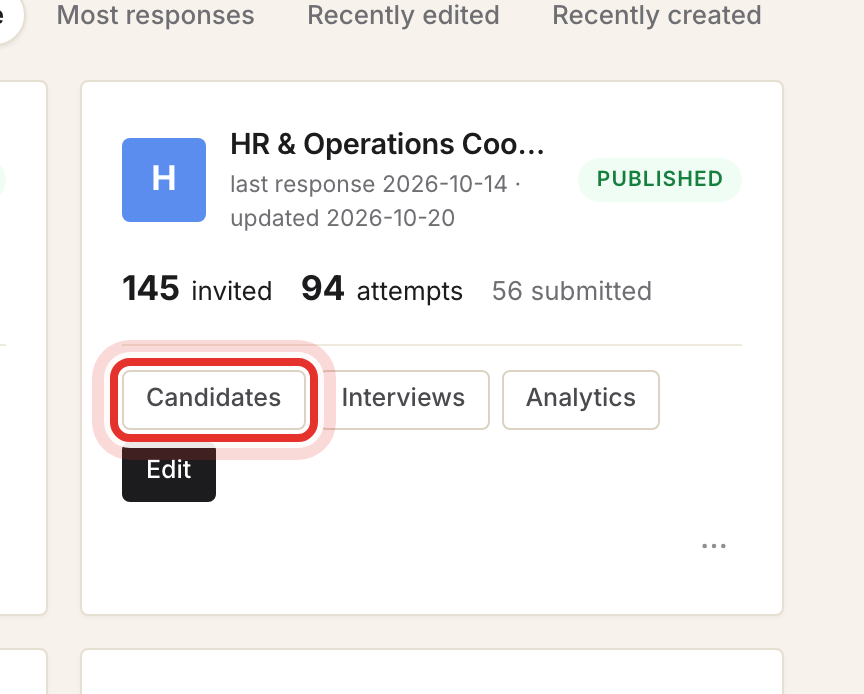
Click Assessments in the top bar, find the role's card and click Candidates. Invitations and sittings for that assessment live on this one list, sorted by assessment score by default.
Step 2, Read each candidate's status
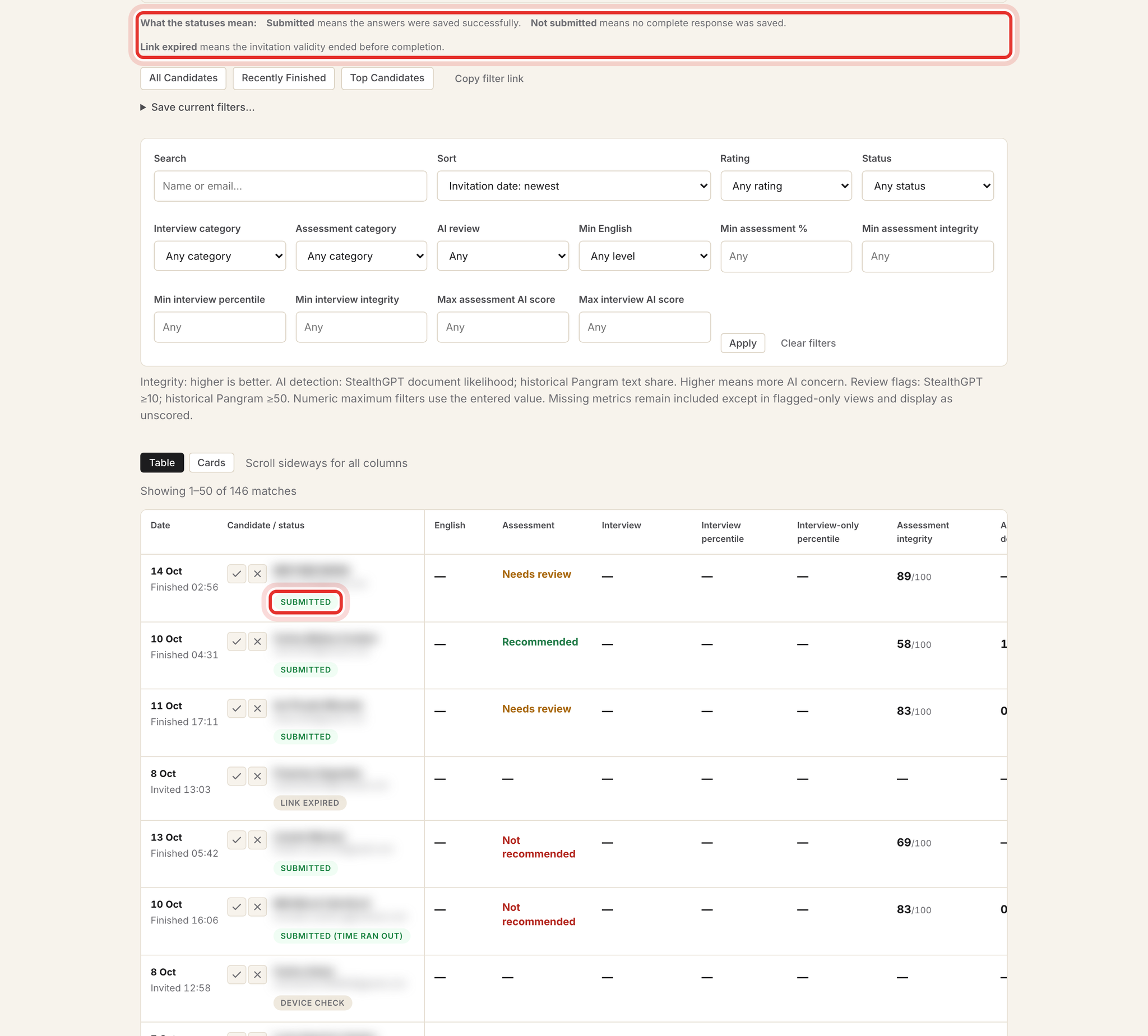
The badge under each name shows how far the candidate got. The legend at the top of the page explains the three that cause the most questions.
- Not sent, Sent, Opened: invited, has not started.
- Device check, In progress: sitting the assessment now.
- Submitted or Submitted (time ran out): answers saved and ready to review.
- Not submitted, Abandoned, Withdrawn, Link expired: no complete answers.
The Date column shows Finished or Invited with the time. Click a row to open that sitting; Ctrl or Cmd-click opens it in a new tab.
Step 3, Narrow the list with filters
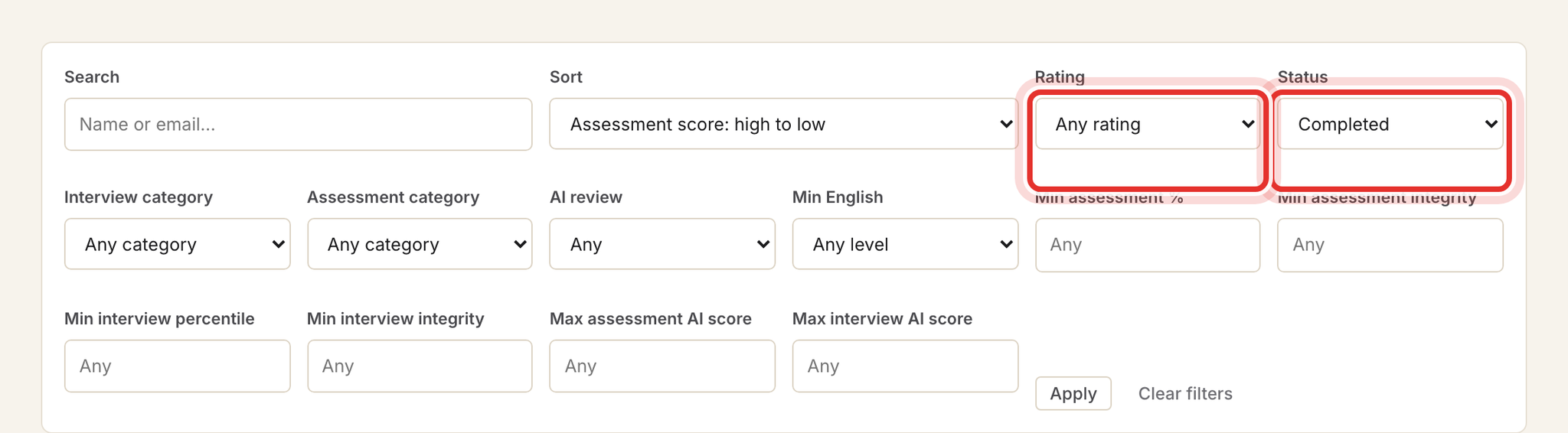
Filters apply as soon as you change them. Status groups the badges into Completed, In progress, Invited / not started and Expired / withdrawn. Use Search for a name or e-mail, and Sort to reorder. Clear filters resets everything.
The number fields (for example Min assessment %) still show candidates who have no score yet, so expect some blank or Pending rows.
Step 4, Approve or reject a candidate
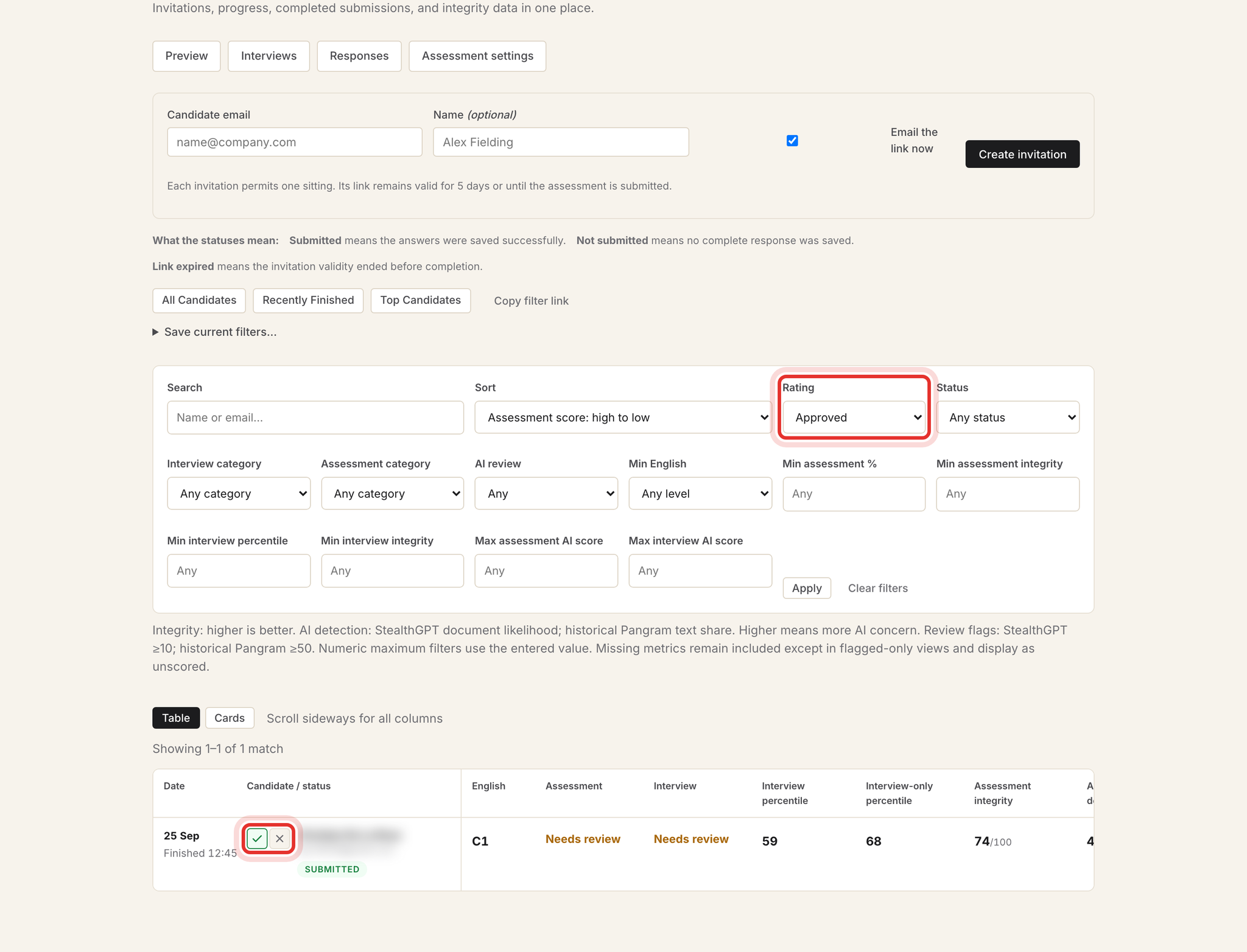
Click the check mark to Approve or the X to Reject. Click the active one again to clear it. The rating saves right away.
A rating is one verdict per e-mail address for the whole workspace, so it shows on Candidates, Interviews and Responses alike. It is a note for the team only: it sends no e-mail, moves no one to another stage and starts no automation. Records with no e-mail cannot be rated.

Step 5, Show your review list
Set Rating to Approved to see your shortlist, Rejected for the people you ruled out, or Not rated for those nobody has looked at yet. There are no bulk actions, so work through the list one row at a time.
Step 6, Save the view or share it
- Set the filters you want.
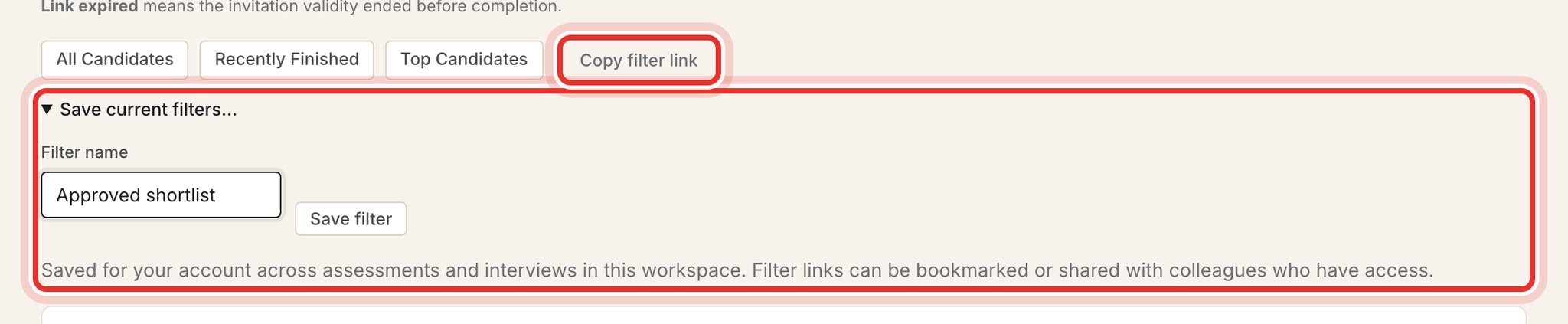
- Open Save current filters…, type a Filter name and click Save filter.
- To give a colleague the same view, click Copy filter link and send the link.
Saved filters belong to your account only and appear on both the Candidates and Interviews pages. A colleague will not see your saved button, only the link. Recently Finished and Top Candidates are built in.
Step 7, Follow interviews for the role
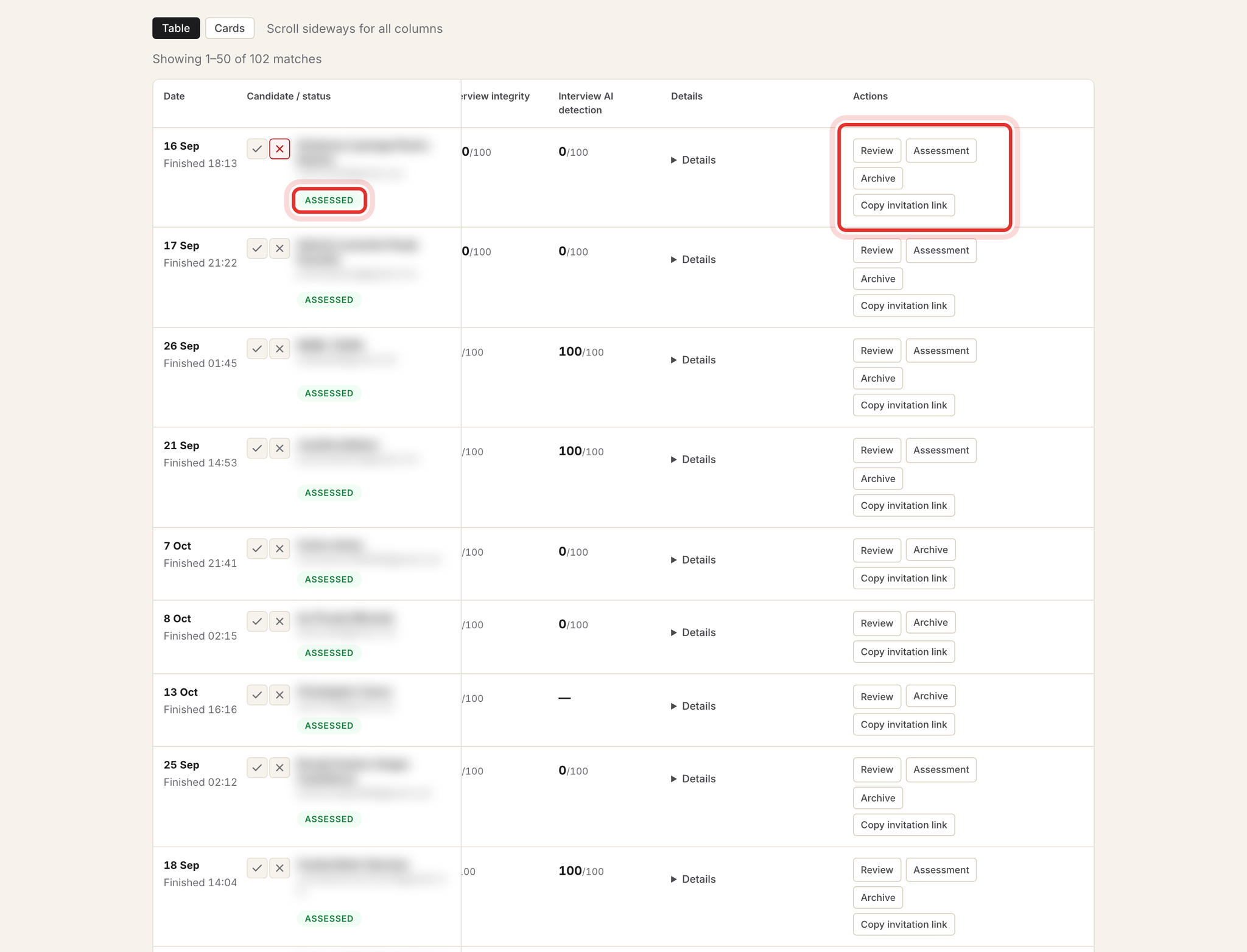
On the Candidates page, click Interviews. The badge shows the interview status, such as Created, Consented, Completed or Assessed (report ready). Use Review for the report and Assessment for the written sitting. You need the editor role or higher to open this page.
Archive only hides the row; the candidate's link still works. To stop a link, open the interview and use Revoke.
Step 8, Check Responses for the saved answers
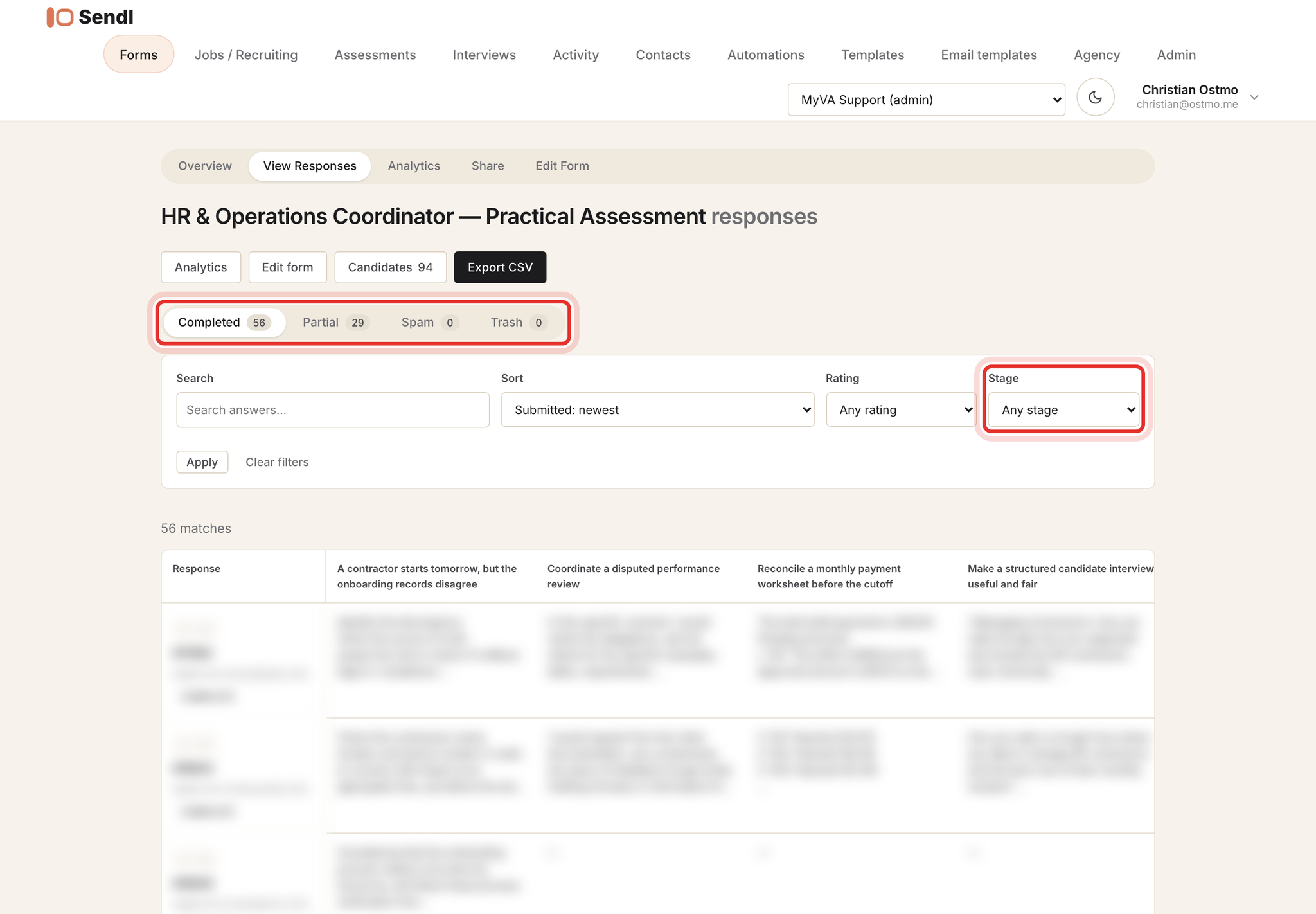
Click Responses on the Candidates page. The tabs split Completed, Partial, Spam and Trash. The Stage filter shows where each person is in the process, from Assessment invited to Interview done. Export CSV downloads personal data, so keep the file private.
Common problems
- Unsure about Send Interview on a row: it e-mails the candidate straight away, so click it only when you mean to invite them.
- Approved candidate did not move forward: ratings are notes only; send the next step yourself.
- Colleague cannot find your saved filter: send them the Copy filter link instead.
- Unscored candidates still appear after a minimum filter: expected; minimum filters keep anyone without that score.
- "Your role cannot do that" on Interviews: ask a workspace admin for the editor role.
- "Could not update results": click Apply again or reload the page.
What success looks like
You can tell at a glance who is waiting, who finished and who is on your shortlist. Next: Review results and share a candidate with the team, or Invite a candidate into the right hiring process. If a candidate is stuck, see Help candidates with assessment or interview problems.