For editors and admins: how to turn a library template into a draft assessment, fill in the job, publish it and set up the pipeline that sends it to applicants.
Step 1, Open the assessment library
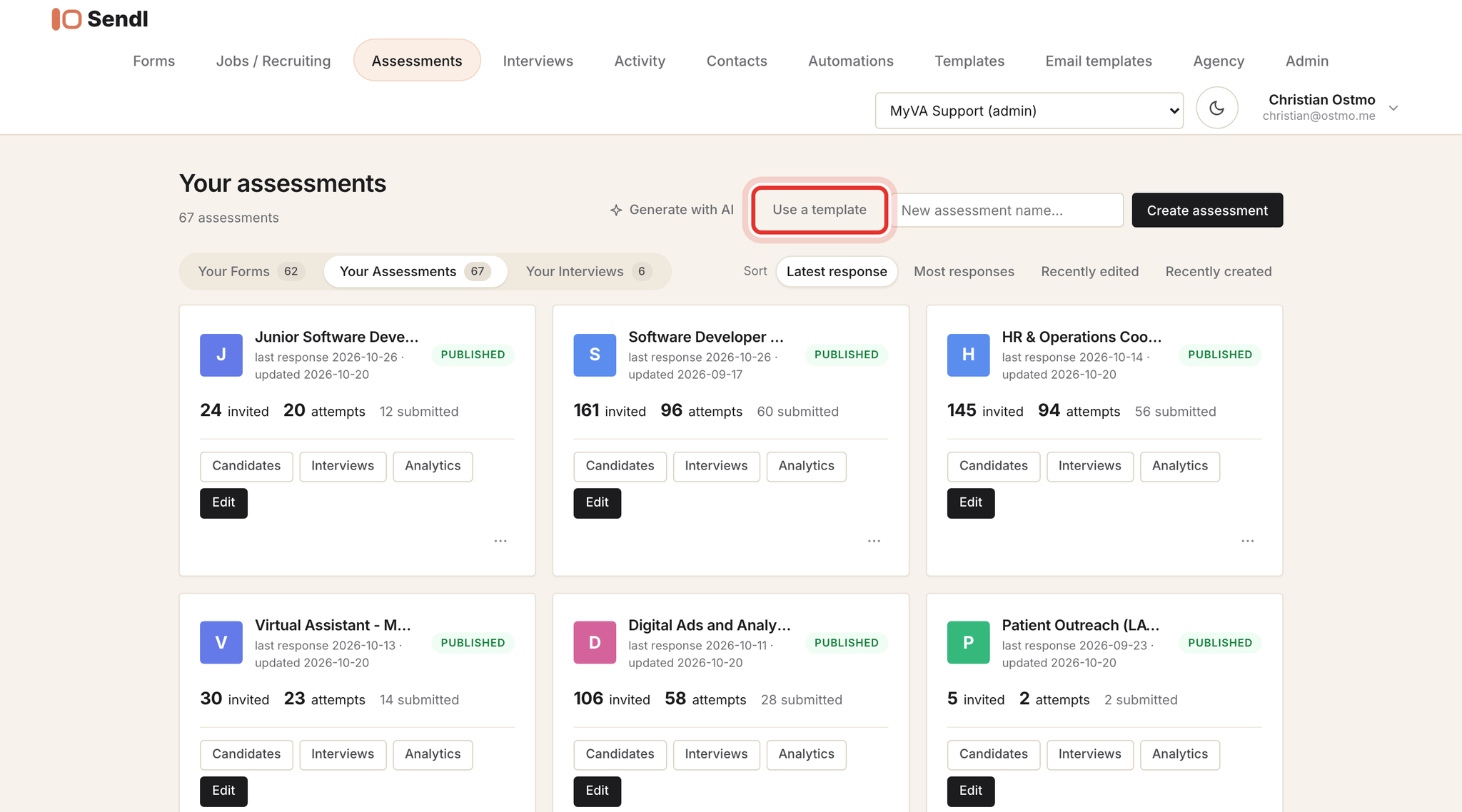
Click Assessments in the top bar, then Use a template. Use this library for assessments. The Templates item in the top bar holds ordinary forms, which are not proctored assessments.
Step 2, Find a template for the role
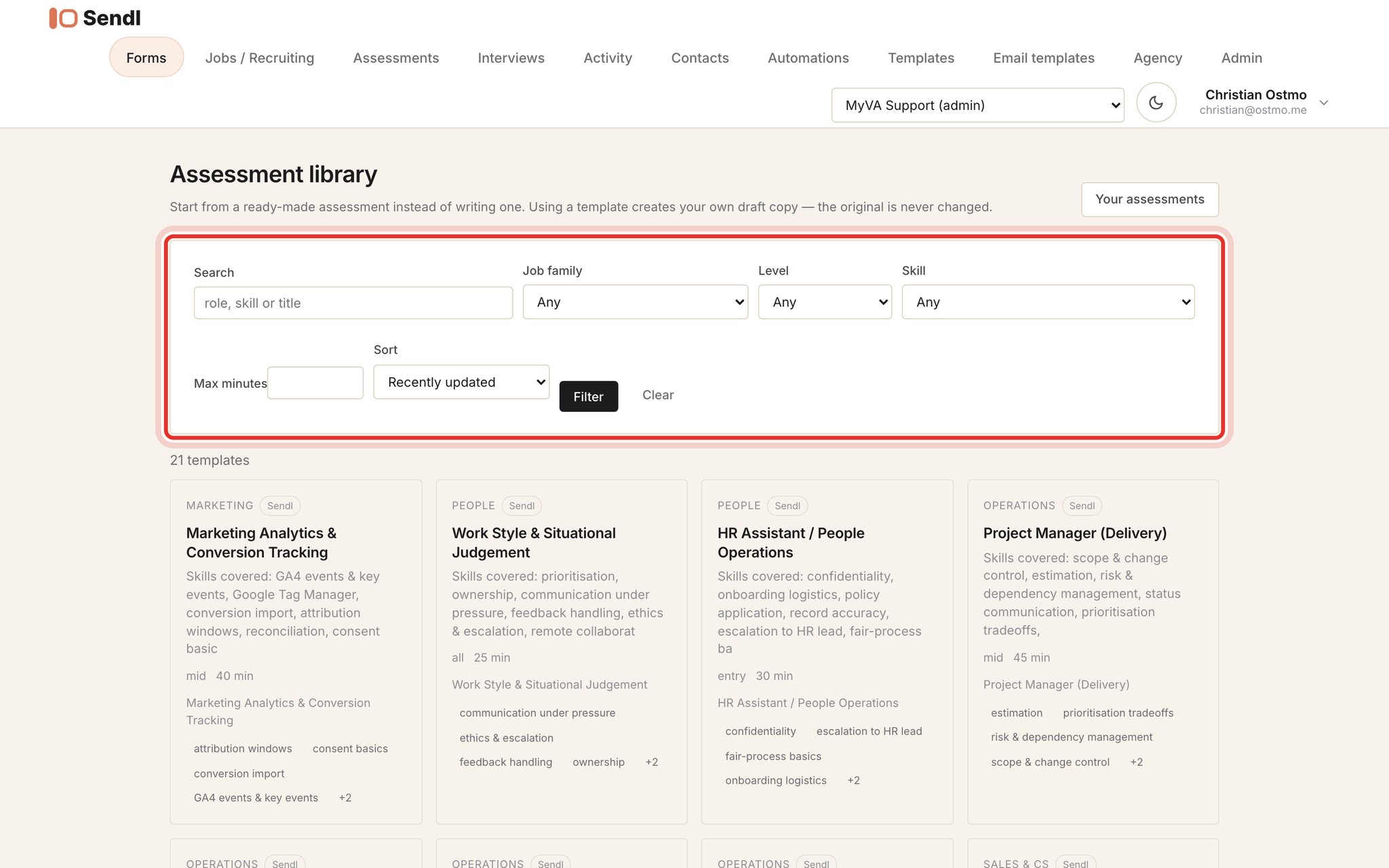
Type a role or skill in Search, or narrow by Job family, Level, Skill and Max minutes, then click Filter. Clear resets the list. Click a card to open it.
Step 3, Check the structure, then create your draft
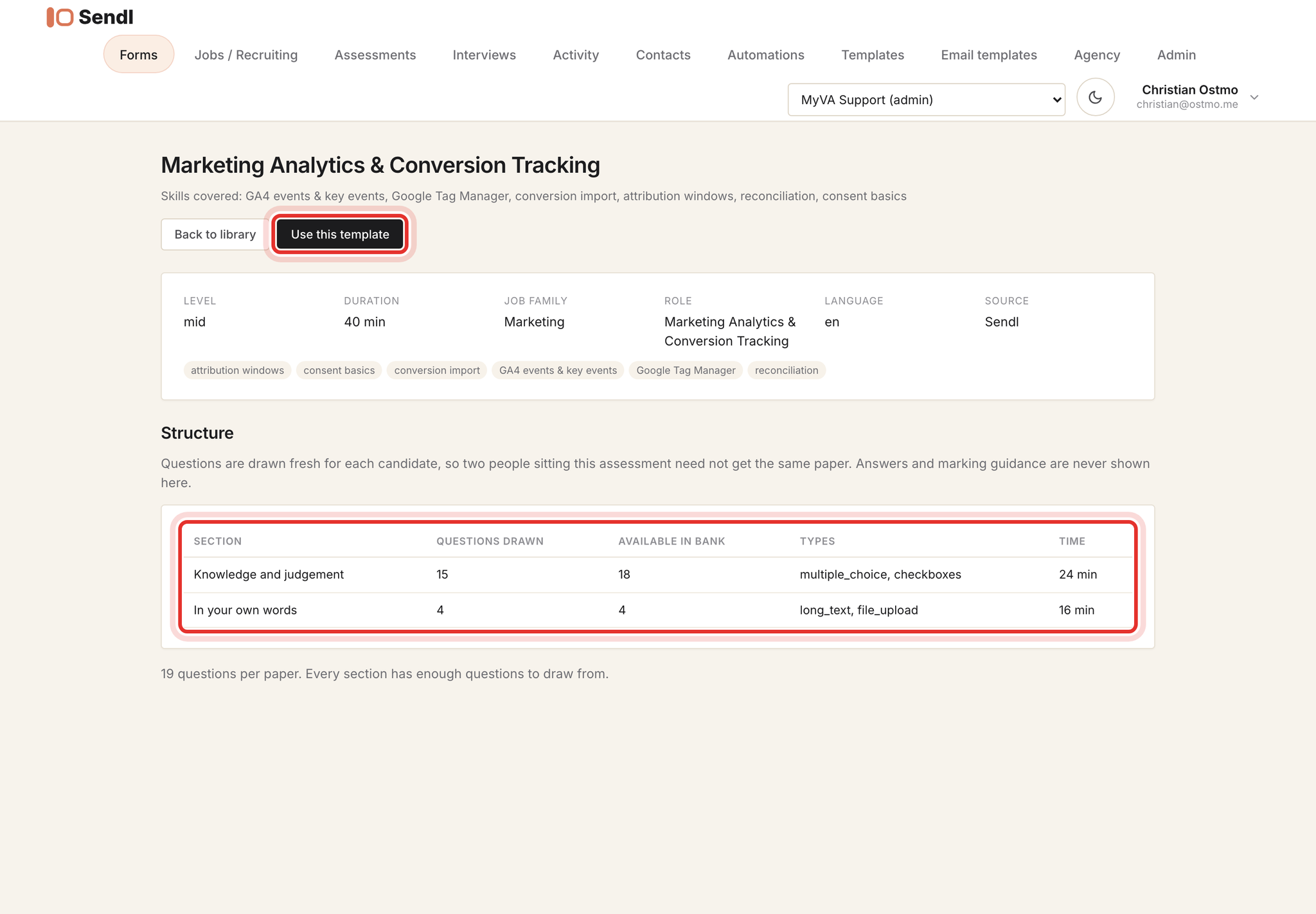
The Structure table shows each section, how many questions it uses, how many the question bank holds, and the time. The line under it must say Every section has enough questions to draw from. If it says the template cannot generate a paper yet, the button is disabled.
Use this template creates a draft copy in the workspace right away. It sends nothing and does not change the template. Click it once: every click, and every refresh of the result page, makes another draft. Then click Open and customise it.
Question banks have no screen in Sendl. They are added and edited through the AI connection (see Connect Sendl to AI and use it to review candidates). Expect every candidate on one draft to get the same questions, and read them through in Edit questions before you publish.
Step 4, Fill in the job
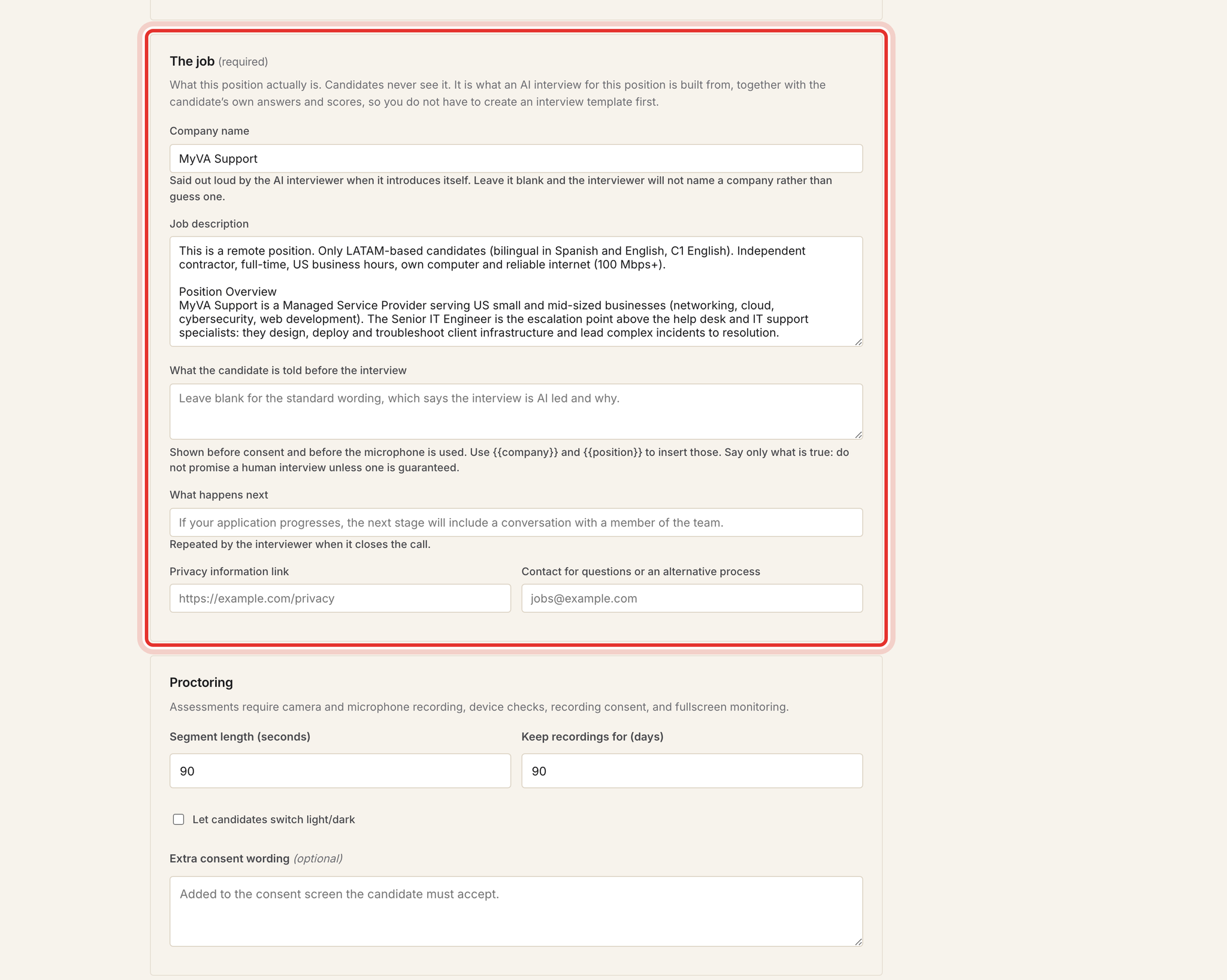
From Assessments, click Candidates on the draft, then Assessment settings. Fill in the Title, Company name and Job description. Candidates never see the job description, but the AI interview is built from it, and Send Interview is blocked until it is filled in.
Step 5, Set sections, time limits and access
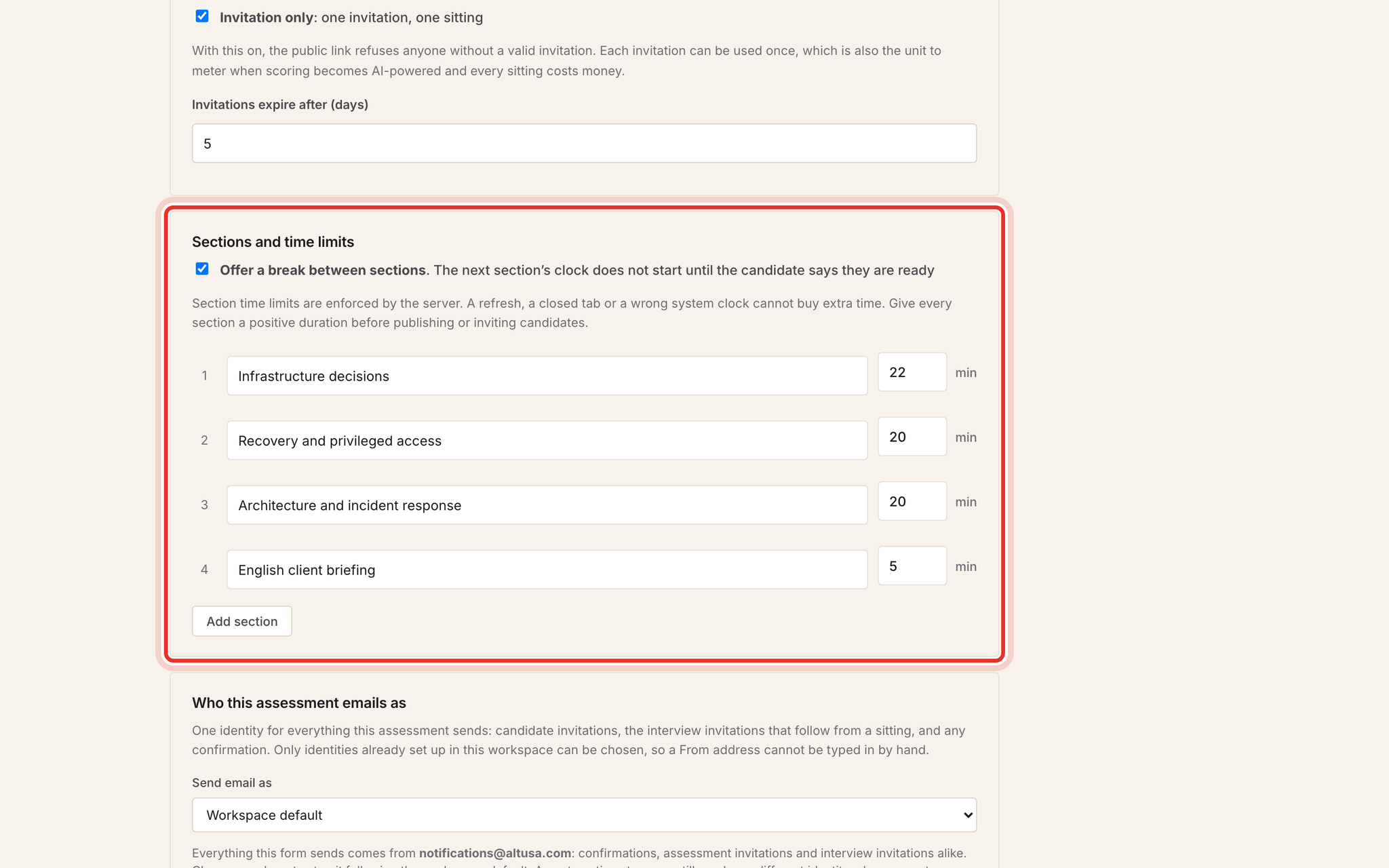
Under Sections and time limits, give every section a name and a number of minutes, and make sure each section has at least one question. Keep Invitation only ticked under Access so only invited people can sit it. Check Send email as and Invitation wording, then click Save assessment settings.
Step 6, Publish the assessment
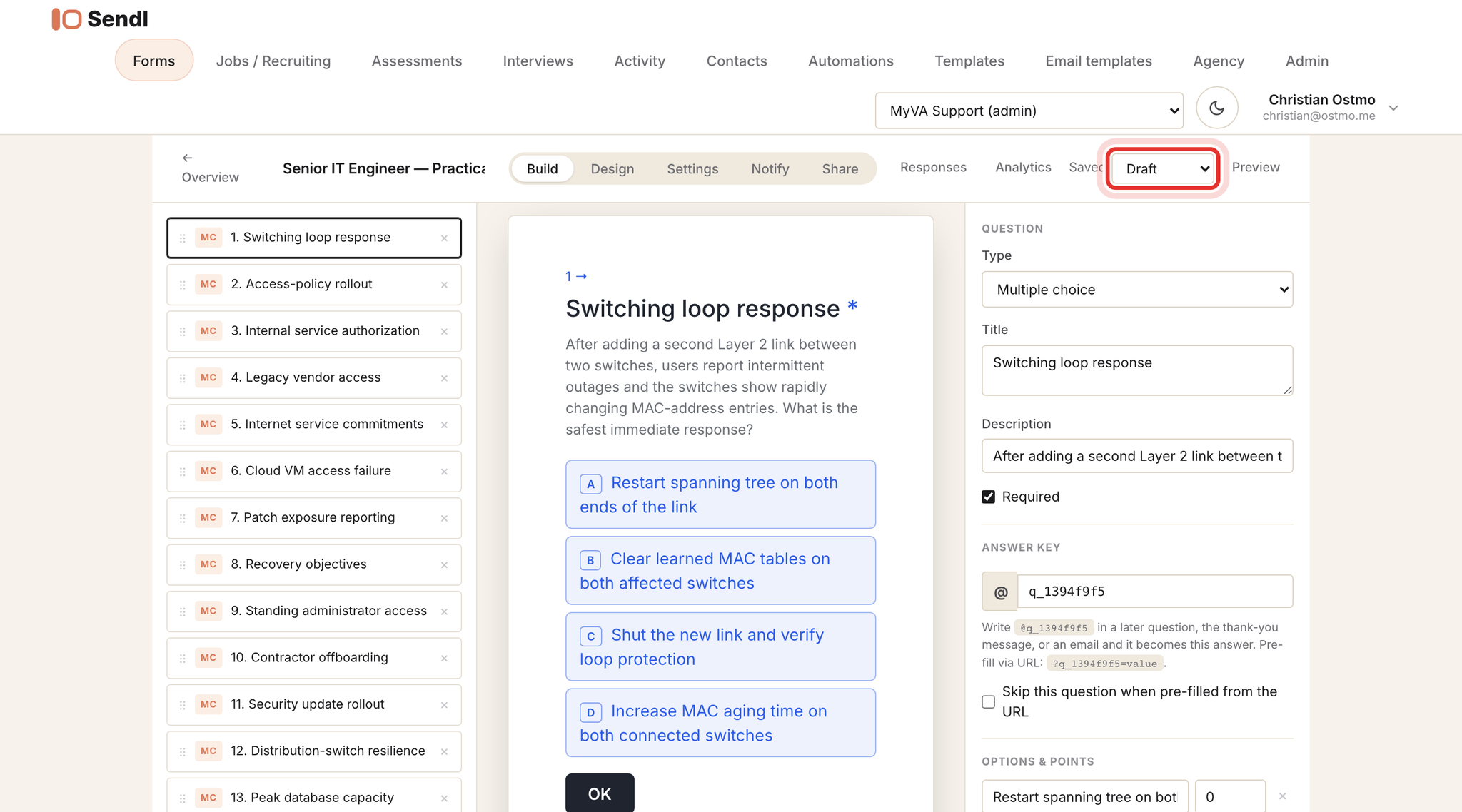
Click Edit questions to open the builder. The status list next to Preview shows Draft, Published or Closed. Choosing Published saves at once, so do it only when the questions and settings are final. If the save status next to it shows an error, the assessment is still a draft: fix the sections and check the status pill on the overview page.
Preview opens the candidate side as a test sitting marked Preview. On a draft it only shows "This assessment is not accepting responses." That is expected. Preview after publishing; invitation-only keeps it private.
Step 7, Draw the hiring pipeline
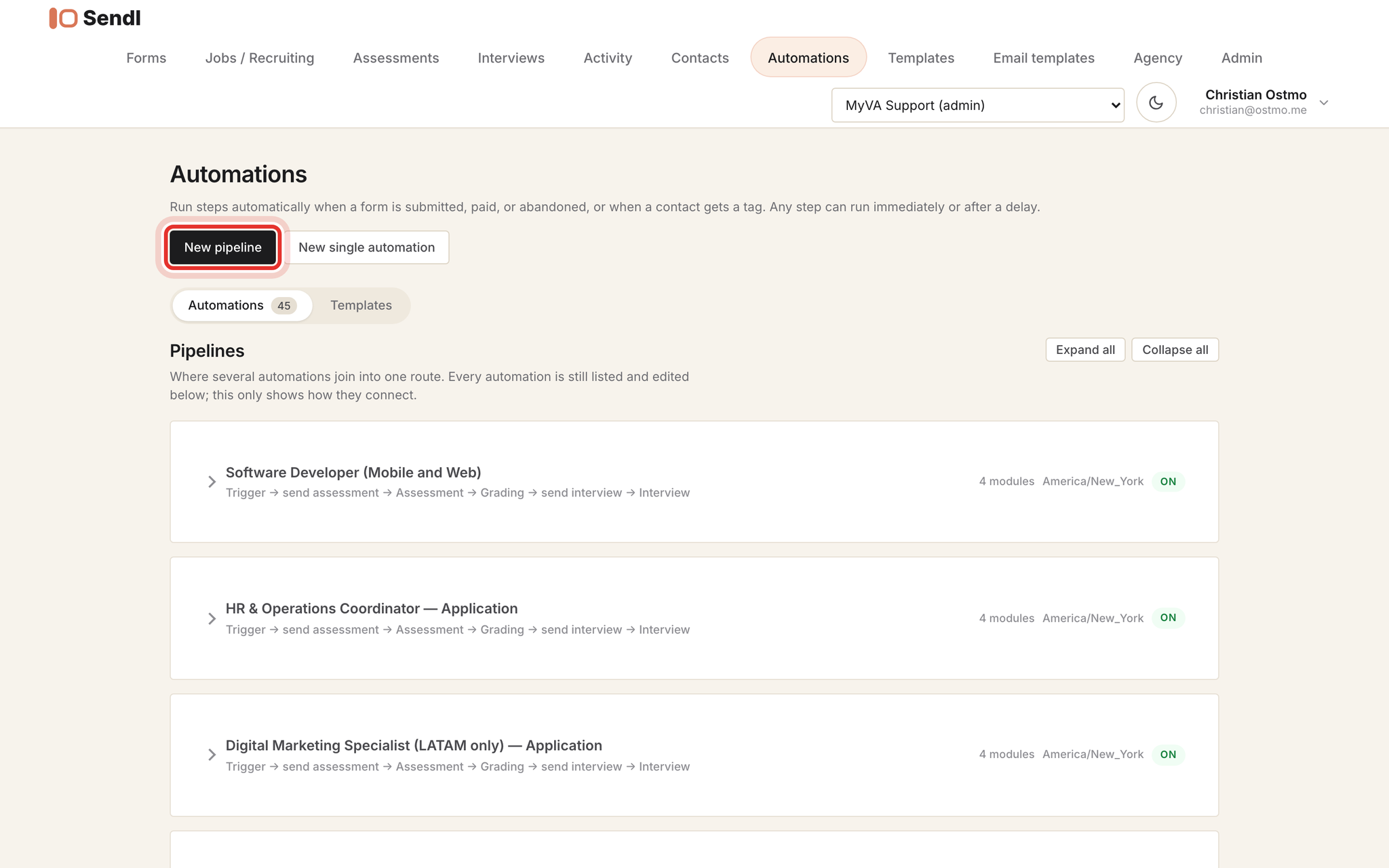
Click Automations, then New pipeline. Add a Starts with module (for example Form submitted on the application form), any Only if and When modules, then Send an assessment. Only published assessments appear in Which assessment, which is why Step 6 comes first.
Step 8, Save the draft, then review and activate
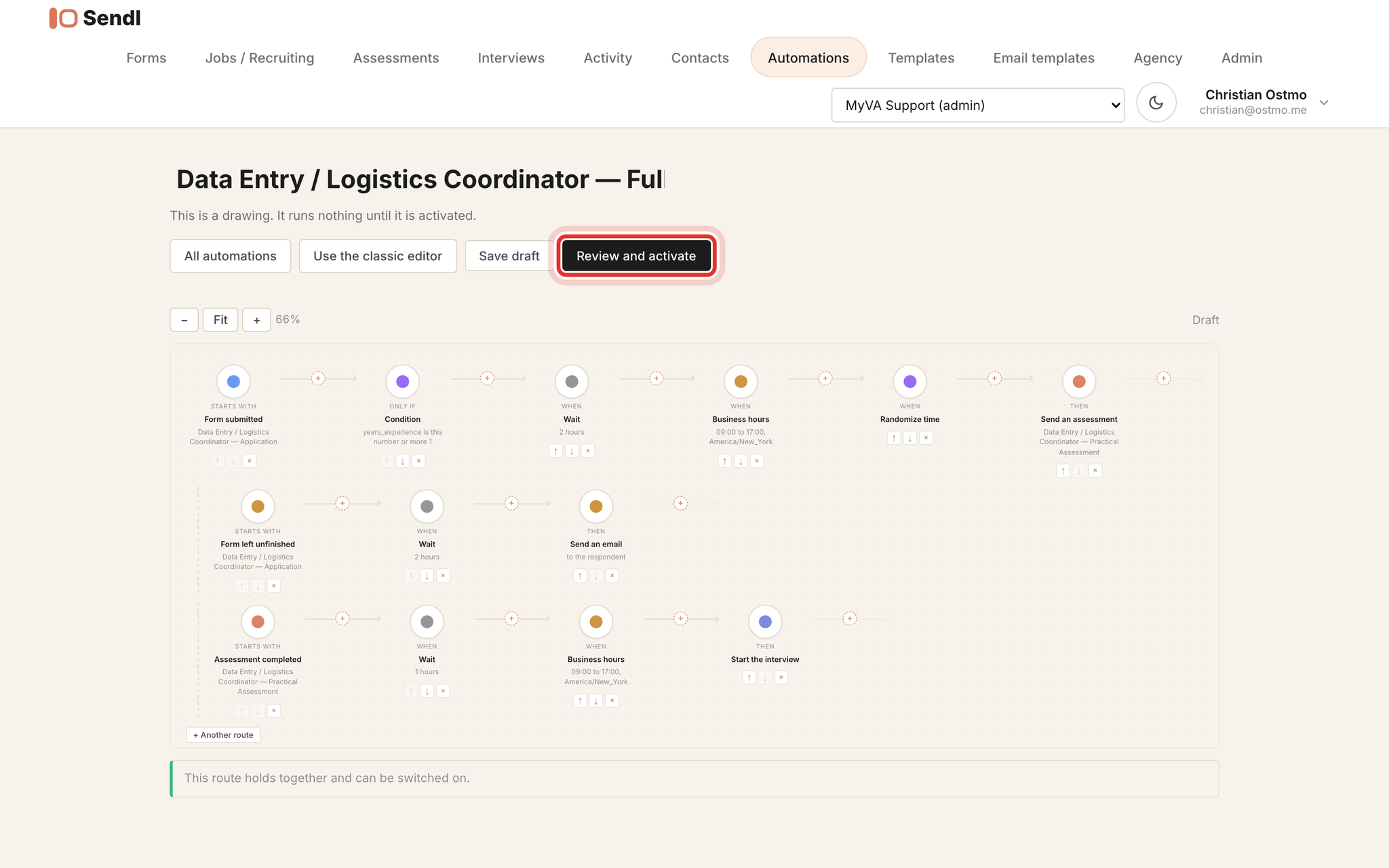
Click Save draft. A draft pipeline runs nothing. When the note at the bottom says This route holds together and can be switched on., Review and activate shows what will happen. Switch it on makes it live, and from then on it e-mails real applicants; Not yet closes it without changes.
On a live pipeline, every Apply, removal or save takes effect immediately, and a change that breaks the route pauses it. There is no Pause button in the pipeline builder; pause each automation from its own page.
Step 9, Connect the role to Zoho Recruit
In Recruit, click +, then Job Opening, and create the opening for the role. End the title with (LATAM only) like the other MyVA openings.
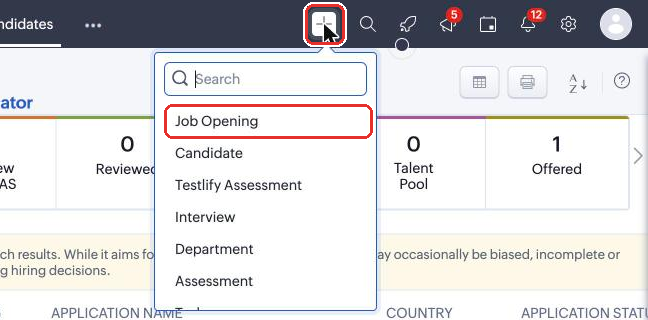
Then send Christian the Recruit job opening title and the Sendl assessment title. He connects both directions, which you cannot do yourself because it needs the connection's private key:
- Candidates who pass the assessment are added to Recruit with their CV.
- Candidates Andrea adds to that opening by hand get the role's Sendl interview invitation.
Until he confirms, nobody from this role reaches Recruit. How the sync works: How candidates sync between Sendl and Zoho Recruit.
Common problems
- Two or three identical drafts: Use this template was clicked or refreshed more than once; delete the extras (admins only).
- Publish or invite refused about sections: give every section positive minutes and at least one question.
- Assessment missing from Which assessment: it is still a draft; publish it first.
- "This assessment is not accepting responses." in Preview: the assessment is a draft.
- Candidates do not move on after a pass mark: on AI-graded assessments use a Condition with answer key grade_category and value recommended, not Pass criteria.
- Candidates get two e-mails: an Open in builder copy was activated while the original automations still run; pause one set.
What success looks like
The assessment shows as published with its job description and timed sections, the pipeline is live or saved as a reviewed draft, and Christian has confirmed the Recruit connection. Next: Invite a candidate into the right hiring process.